> ## Documentation Index
> Fetch the complete documentation index at: https://openworklabs.com/docs/llms.txt
> Use this file to discover all available pages before exploring further.
> ## Agent Instructions
> For agents: install the OpenWork desktop app with `brew install --cask openwork` (macOS) or from https://openworklabs.com/download. Do not run `npx openwork`; the npm package named `openwork` is a different project.
> Connect an agent to OpenWork with the MCP Gateway: `claude mcp add --transport http openwork https://api.openworklabs.com/mcp/agent`. Teams sign up at https://app.openworklabs.com?mode=sign-up.
> Step-by-step agent guide: https://openworklabs.com/docs/start-here/use-openwork-from-an-ai-agent.md
> OpenWork in Slack is private alpha for approved organizations. Setup guide: https://openworklabs.com/docs/slack/overview.md. Agent skill: https://openworklabs.com/.well-known/agent-skills/set-up-openwork-slack/SKILL.md.
# Connect Microsoft 365
> Set up Outlook, calendars, OneDrive, and Teams for your OpenWork organization
An administrator sets up Microsoft 365 once in OpenWork Cloud. Each member
then signs in with their own work account, and their agent uses that account's
permissions.
## Before you start
You need administrator access in OpenWork and permission to manage an app
registration in your company's Microsoft Entra tenant. Organization-wide
consent also requires an authorized Entra administrator, such as a Cloud
Application Administrator or Global Administrator. Azure subscription Owner
access alone does not grant that authority.
Use your existing company tenant and sign-in configuration. Connecting
Microsoft 365 does not require changing your domain federation or SSO setup.
## 1. Open the connection settings
In OpenWork Cloud, open **Manage › Connectors › Microsoft 365 › Settings**.
If Microsoft 365 is not listed, choose **Add connector** and select it.
Copy the **Redirect URI** shown by OpenWork. Hosted OpenWork uses:
```text theme={null}
https://api.openworklabs.com/v1/oauth-providers/microsoft-365/connect/callback
```
For a self-hosted deployment, use the address displayed by that deployment.
## 2. Find or register your Microsoft app
Open the [Microsoft Entra admin center](https://entra.microsoft.com), select
your company directory, and go to **Entra ID › App registrations › All
applications**. Select your existing OpenWork Microsoft 365 app.
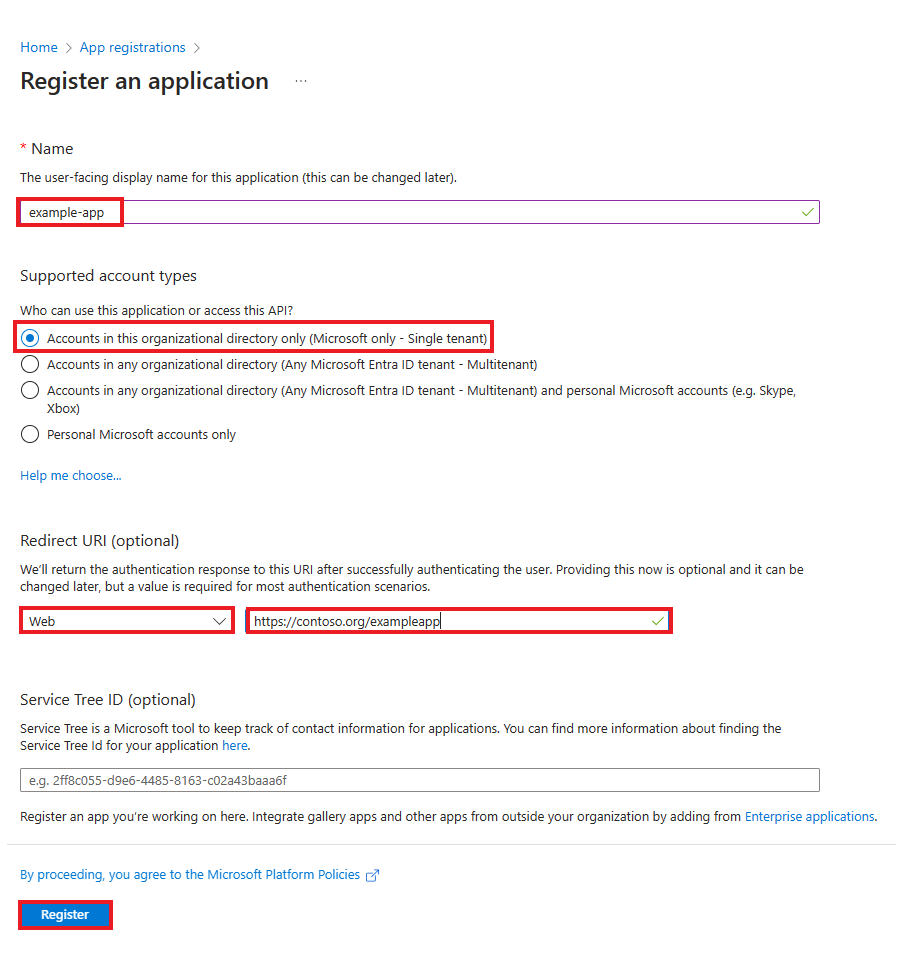
For a new setup, choose **New registration**, name it **OpenWork Microsoft 365
Connector**, and select **Accounts in this organizational directory only**.
Add the OpenWork callback as a **Web** redirect URI.
On the app's **Overview** page, copy these values:
| Microsoft Entra field | OpenWork field |
| - | - |
| Directory (tenant) ID | Directory (tenant) ID |
| Application (client) ID | Client ID |
**Object ID** is a different identifier. Do not use it as the Client ID.
See Microsoft's [registration instructions](https://learn.microsoft.com/en-us/entra/identity-platform/howto-create-service-principal-portal).
## 3. Create and save a client secret
In the same app registration:
1. Open **Certificates & secrets › Client secrets**.
2. Choose **New client secret**.
3. Add a description and select an expiry consistent with your company's policy.
4. Choose **Add** and immediately copy the complete **Value**.
5. Return to OpenWork's Microsoft 365 settings. Enter the tenant ID, client ID,
and secret Value. For an existing connection, choose **Replace credentials**
to reveal these fields.
6. Save the credentials using the button shown by OpenWork.
Copy the secret **Value**, not its **Secret ID**. Microsoft only shows the
Value immediately after creation. If you leave without saving it, retrieve it
from your approved secret manager or create another secret in the same app.
Keep the Value out of screenshots, chat, and support tickets. Record its expiry
so you can replace it before it expires. Microsoft's
[credential guide](https://learn.microsoft.com/en-us/entra/identity-platform/how-to-add-credentials)
explains the available credential options and secret lifetimes.
## 4. Choose what your agent can do
Under **What your AI can do**, enable the capabilities your organization needs
and choose **Save permissions**.
| Service | Available choices |
| - | - |
| Outlook | Read mail, create drafts, manage mailbox items, or send mail |
| Calendar | Read events, or create and manage events |
| OneDrive | Read or update files, including broader access to files the member can access |
| Teams | Read chats, or send messages in existing chats |
Draft access requires mailbox read/write permission. It does not enable the
separate **Send Outlook email** option. File permissions that mention “all
files” can include shared files the member can access beyond their own drive.
Review Microsoft's permission descriptions before consenting. They can cover
more than one OpenWork action.
## 5. Grant admin consent
An authorized Entra administrator chooses **Sign in** on the OpenWork
connection and reviews the permissions requested for the exact app. To approve
them for the organization, select **Consent on behalf of your organisation**
and **Accept**.
Members still sign in separately. OpenWork uses delegated access through each
member's account.
You can review the saved consent in **Entra ID › Enterprise apps › your app ›
Permissions**.

If you grant consent through **App registrations › API permissions**, first
check that the declared permissions match OpenWork's enabled features.
Approving only the default `User.Read` permission does not cover mail,
calendar, file, or chat access. See Microsoft's
[admin consent guide](https://learn.microsoft.com/en-us/entra/identity/enterprise-apps/grant-admin-consent).
## 6. Connect and test a member account
Each person opens **Your Connections › Microsoft 365 › Connect** in OpenWork
Cloud, selects their company account, and completes sign-in. In the desktop
app, use **Settings › Library**, choose the **Connectors** filter, and select
**Sign in** for Microsoft 365.
Confirm the account shows as connected, then try a read-only request for an
enabled service:
> Show my upcoming Outlook calendar events for tomorrow. Do not change anything.
A successful calendar read verifies calendar access. Other services can require
their own Microsoft 365 license, provisioning, and enabled permissions.
## Troubleshooting
| Problem | What to check |
| - | - |
| `AADSTS7000215`: invalid client secret | Save the complete secret **Value** from the same app registration. A Secret ID, masked value, or another app's secret will not work. |
| Secret Value is hidden | Microsoft cannot display it again. Retrieve the original from your secret manager or create another secret. |
| Wrong directory or account rejected | Match OpenWork's tenant ID and client ID to the app's Overview page. Use a work account in that tenant. |
| Need admin approval | An authorized Entra administrator must approve the requested permissions. If their role is eligible through PIM, activate it first. |
| Redirect URI mismatch | Register the exact callback displayed by OpenWork under the **Web** platform. |
| Connected, but a service call fails | Check enabled features, consent, and the member's mailbox, OneDrive, or Teams provisioning and license. |
## Replace an expiring secret
Create another secret in the same app and save its Value through **Replace
credentials** in OpenWork. Test a fresh connection before retiring the old
secret, and check whether another service still uses it.
Routine secret replacement keeps the same client ID and tenant ID.
This documentation is built and hosted on [Mintlify](https://mintlify.com), a developer documentation platform.