> ## Documentation Index
> Fetch the complete documentation index at: https://openworklabs.com/docs/llms.txt
> Use this file to discover all available pages before exploring further.
# Connect Slack MCP
> Connect Slack's MCP server with a pre-registered Slack OAuth app
Slack's official MCP server does not support automatic OAuth client registration. To connect it in OpenWork, ask a Slack admin to create or approve a Slack app for MCP, then add the app's OAuth client credentials in OpenWork.
You do not need the old Slack bot tokens (`xoxb-...` or `xapp-...`) for this flow.
## Before you start
You need:
* A Slack workspace where you can install or request approval for Slack apps.
* A Slack app that is published in the Slack Marketplace or marked as an internal app.
* A Slack OAuth client ID and client secret from that app.
* The Slack MCP server URL: `https://mcp.slack.com/mcp`.
Keep the client secret out of chats and source control. Treat it like any other workspace secret.
## Create or approve the Slack app
In Slack, an admin should create or approve an app for OpenWork's MCP access.
1. Open [Slack API apps](https://api.slack.com/apps) and create a new app, or open the existing internal app you want to use.
2. Go to `OAuth & Permissions`.
3. Add this redirect URL: `http://127.0.0.1:19876/mcp/oauth/callback`.
4. Add the `User Token Scopes` for the Slack MCP tools your team wants OpenWork to use.
5. Save the app and install or approve it for the workspace.
6. Go to `Basic Information` > `App Credentials` and copy the `Client ID` and `Client Secret`.
Slack MCP uses user token scopes. Choose the smallest set that matches what your team wants agents to do.
For a useful read-first setup, start with:
```text theme={null}
search:read.public search:read.private search:read.mpim search:read.im search:read.files search:read.users channels:history groups:history mpim:history im:history users:read users:read.email channels:read groups:read mpim:read
```
Add write scopes only if you want agents to take action in Slack:
```text theme={null}
chat:write reactions:write channels:write groups:write im:write mpim:write canvases:read canvases:write
```
Use this table to pick scopes by capability:
| Slack MCP capability | User token scopes |
| ------------------------------------------- | --------------------------------------------------------------------------------- |
| Search public and private messages/channels | `search:read.public`, `search:read.private`, `search:read.mpim`, `search:read.im` |
| Search files | `search:read.files` |
| Read files | `files:read` |
| Search emoji | `emoji:read` |
| Search users | `search:read.users` |
| Send messages | `chat:write` |
| Read channels and threads | `channels:history`, `groups:history`, `mpim:history`, `im:history` |
| Create conversations/channels | `channels:write`, `groups:write`, `im:write`, `mpim:write` |
| Add reactions | `reactions:write` |
| Read and write canvases | `canvases:read`, `canvases:write` |
| Read user profiles and email | `users:read`, `users:read.email` |
| List channel members | `channels:read`, `groups:read`, `mpim:read` |
## Open Extensions
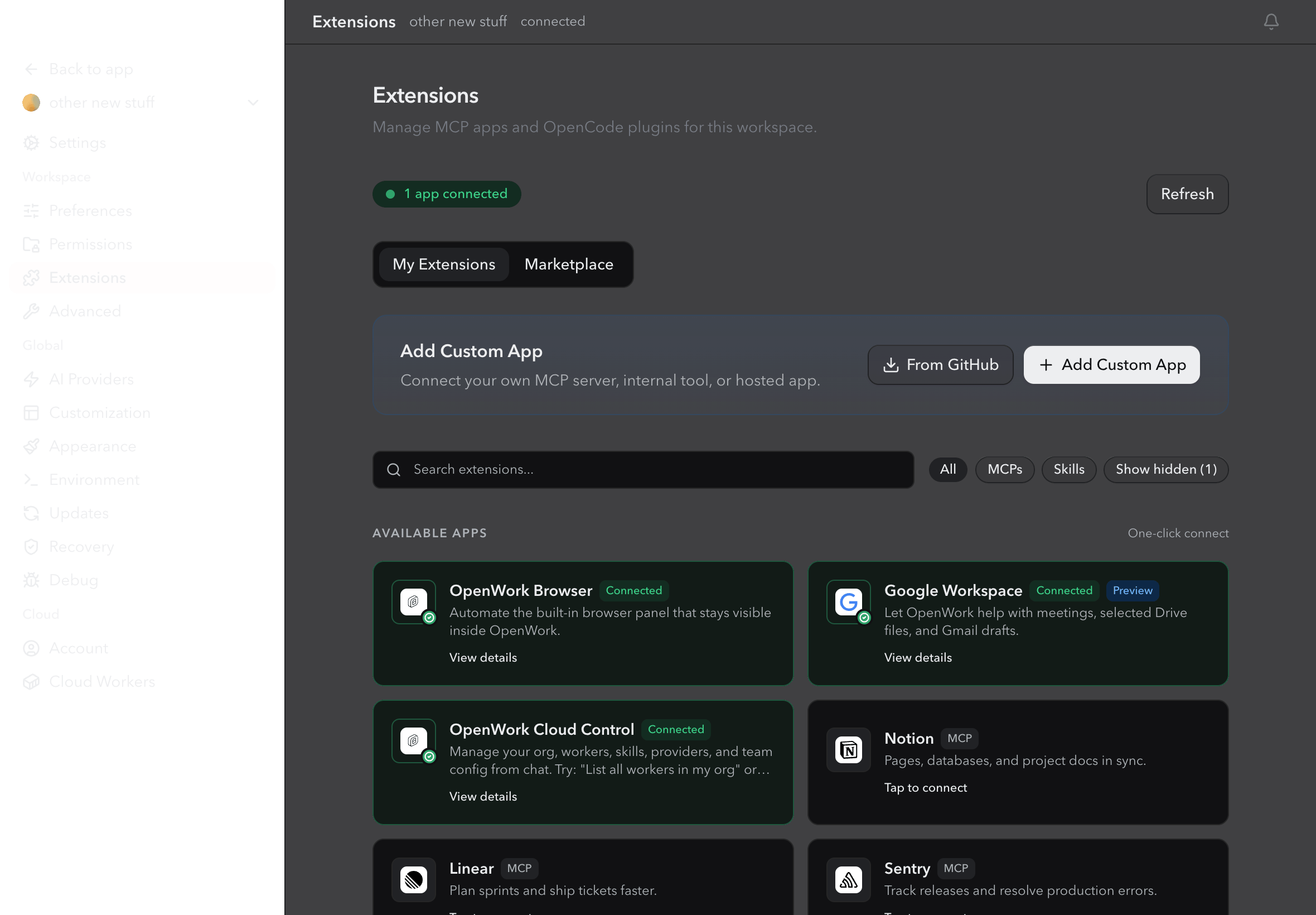
In OpenWork, open your workspace and go to `Settings` > `Extensions`. Click `Add Custom App`.
 ## Add the Slack MCP server
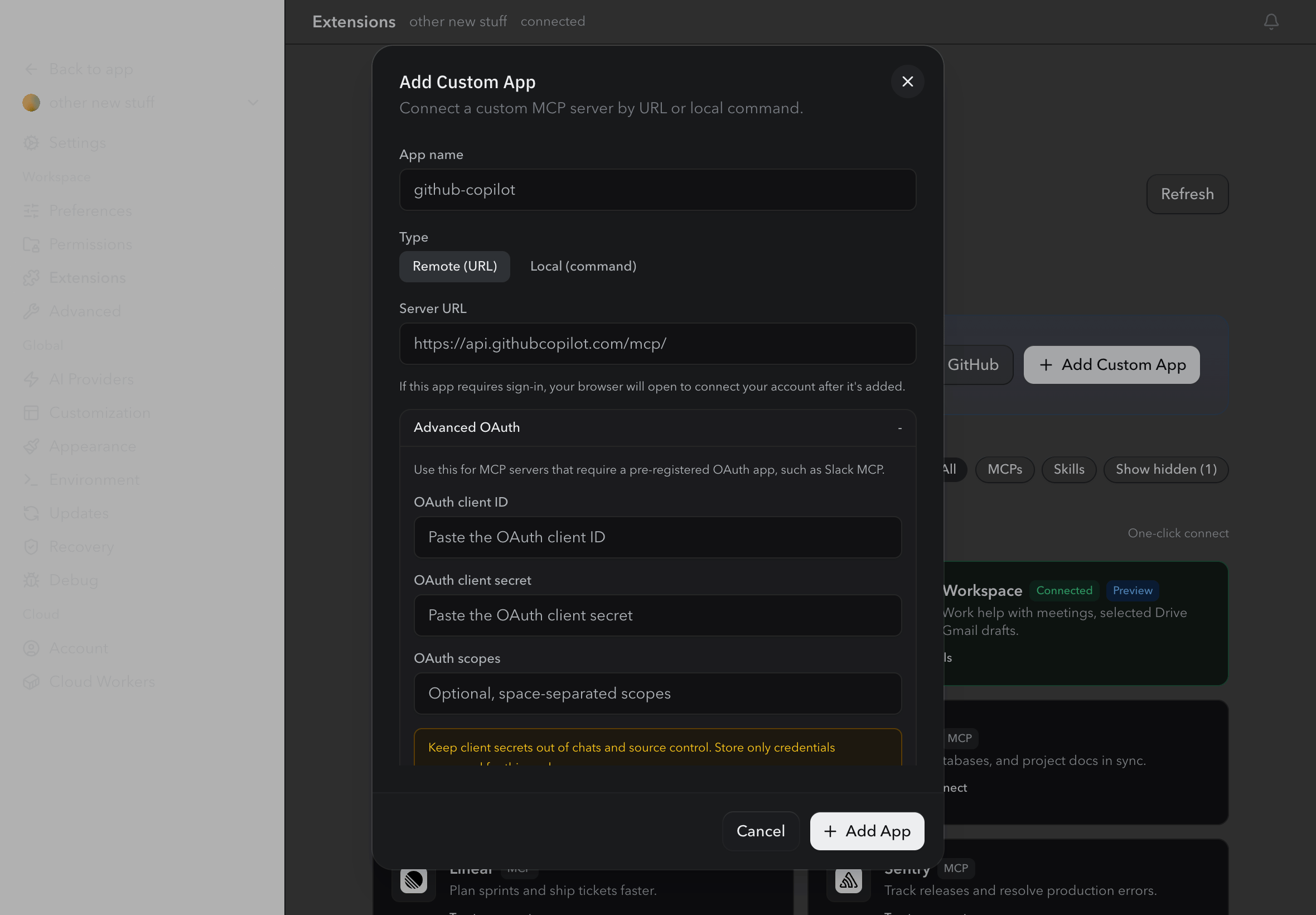
In the Add Custom App dialog:
1. Set `App name` to `slack`.
2. Keep `Type` set to `Remote (URL)`.
3. Set `Server URL` to `https://mcp.slack.com/mcp`.
4. Open `Advanced OAuth`.
5. Paste the Slack OAuth client ID.
6. Paste the Slack OAuth client secret.
7. Paste the same user token scopes you added in Slack, separated by spaces.
8. Click `Add App`.
## Add the Slack MCP server
In the Add Custom App dialog:
1. Set `App name` to `slack`.
2. Keep `Type` set to `Remote (URL)`.
3. Set `Server URL` to `https://mcp.slack.com/mcp`.
4. Open `Advanced OAuth`.
5. Paste the Slack OAuth client ID.
6. Paste the Slack OAuth client secret.
7. Paste the same user token scopes you added in Slack, separated by spaces.
8. Click `Add App`.
 OpenWork writes the MCP entry with the OAuth client credentials, similar to this:
```json theme={null}
{
"mcp": {
"slack": {
"type": "remote",
"enabled": true,
"url": "https://mcp.slack.com/mcp",
"oauth": {
"clientId": "your-slack-client-id",
"clientSecret": "your-slack-client-secret"
}
}
}
}
```
If you entered scopes, OpenWork also saves them as `oauth.scope`. This is the scope list Slack sees during OAuth consent.
## Sign in to Slack
After the MCP app is added, reload the engine if OpenWork asks you to. Then start Slack MCP sign-in from the Slack app card or the MCP auth prompt.
Slack opens in your browser and shows the scopes you configured. Approve the Slack app for the workspace you want OpenWork to use, then return to OpenWork when authorization finishes.
## Troubleshooting
If you see an error like `Incompatible auth server: does not support dynamic client registration`, the Slack MCP entry is missing a pre-registered OAuth client ID and client secret. Reopen the Slack MCP setup, add those values under `Advanced OAuth`, reload the engine, and try sign-in again.
If Slack says the redirect URL is invalid, add `http://127.0.0.1:19876/mcp/oauth/callback` to the Slack app's `OAuth & Permissions` redirect URLs.
If Slack says a scope is invalid or unavailable, remove that scope from both the Slack app and OpenWork's `OAuth scopes` field, then retry. Slack workspace policies and plan settings can limit which scopes an app may request.
If your Slack workspace blocks app installation, ask a Slack admin to approve the app first. OpenWork cannot bypass Slack workspace approval policies.
OpenWork writes the MCP entry with the OAuth client credentials, similar to this:
```json theme={null}
{
"mcp": {
"slack": {
"type": "remote",
"enabled": true,
"url": "https://mcp.slack.com/mcp",
"oauth": {
"clientId": "your-slack-client-id",
"clientSecret": "your-slack-client-secret"
}
}
}
}
```
If you entered scopes, OpenWork also saves them as `oauth.scope`. This is the scope list Slack sees during OAuth consent.
## Sign in to Slack
After the MCP app is added, reload the engine if OpenWork asks you to. Then start Slack MCP sign-in from the Slack app card or the MCP auth prompt.
Slack opens in your browser and shows the scopes you configured. Approve the Slack app for the workspace you want OpenWork to use, then return to OpenWork when authorization finishes.
## Troubleshooting
If you see an error like `Incompatible auth server: does not support dynamic client registration`, the Slack MCP entry is missing a pre-registered OAuth client ID and client secret. Reopen the Slack MCP setup, add those values under `Advanced OAuth`, reload the engine, and try sign-in again.
If Slack says the redirect URL is invalid, add `http://127.0.0.1:19876/mcp/oauth/callback` to the Slack app's `OAuth & Permissions` redirect URLs.
If Slack says a scope is invalid or unavailable, remove that scope from both the Slack app and OpenWork's `OAuth scopes` field, then retry. Slack workspace policies and plan settings can limit which scopes an app may request.
If your Slack workspace blocks app installation, ask a Slack admin to approve the app first. OpenWork cannot bypass Slack workspace approval policies.