

Default roles
OpenWork Cloud comes with three default roles:Owner: full org control, including member roles and custom roles.Admin: can invite people, manage teams, and manage most shared Cloud resources.Member: can use resources shared with them but cannot manage org administration.
Owner can change member roles, remove members, or create, edit, and delete custom roles.
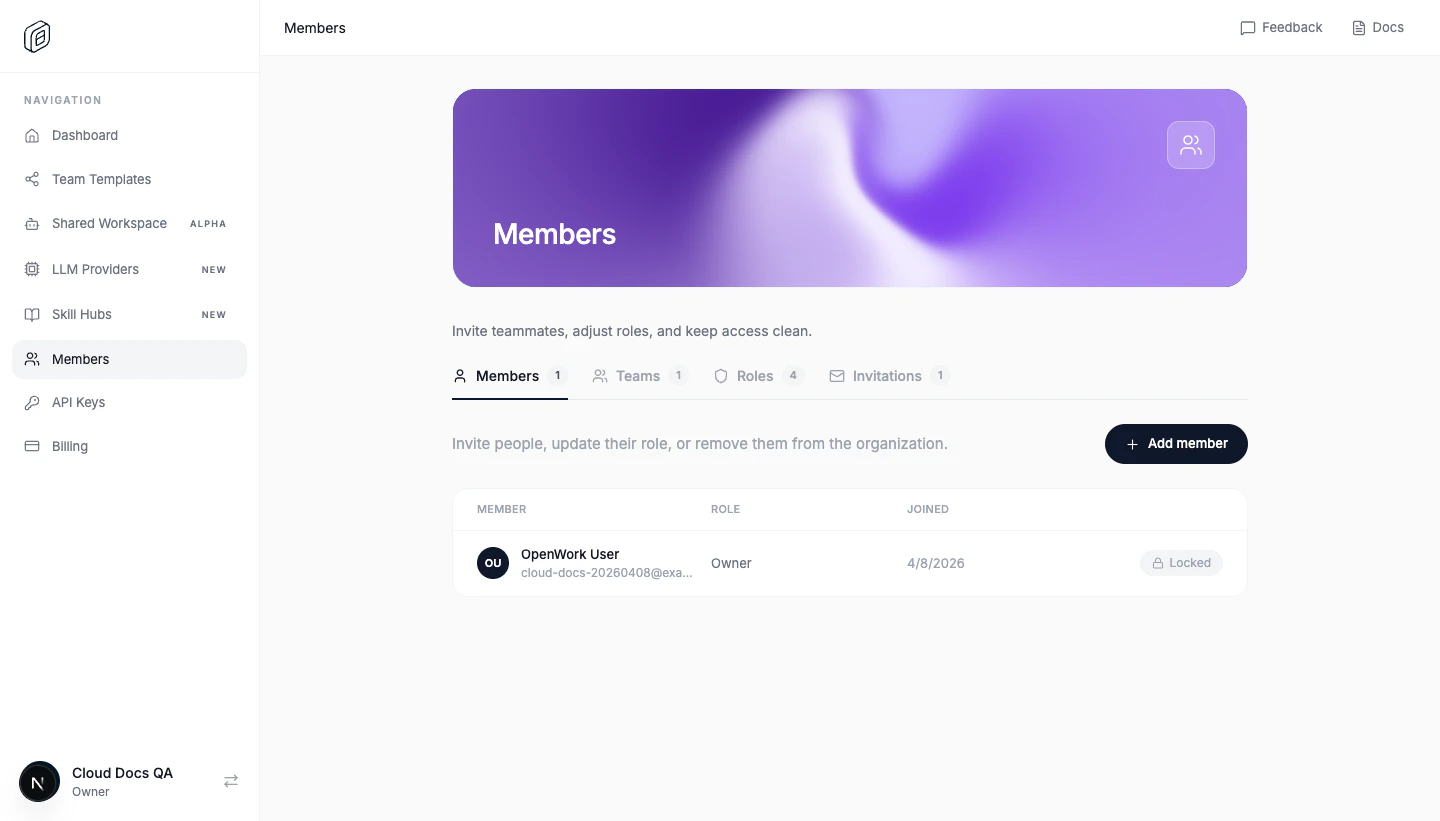
Invite members
- Open
Members. - On the
MembersorInvitationstab, clickAdd memberorInvite member. - Enter the teammate
Email. - Choose the initial
Role. - Click
Send invite.
Create teams
- Open
Members -> Teams. - Click
Create Team. - Set
Team name. - Choose
Team members. - Click
Create team.
Use custom roles when needed
- Open
Members -> Roles. - Click
Create role. - Enter
Role name. - Choose the permissions that role should have.
- Click
Create role.
Practical access pattern
A simple setup that works well for most orgs:- keep 1-2
Ownerusers - give day-to-day operators
Admin - keep most people as
Member - use
Teamsto decide who can see specific skill hubs or providers
Notes
- You cannot change the org owner’s role or remove the owner.
- Owners and admins can manage teams and invitations, but only owners can handle the sensitive RBAC changes.
- You cannot delete a custom role while members or pending invitations still use it.