

What branding changes
Branding changes the displayed organization experience. It does not rename or re-sign the installed executable, and the signed application identity remains OpenWork.
Configure the on-prem origins
Normal signed-in desktop traffic can use one Den web origin. In that topology, the desktop points atconfig.public.desktopDenBaseUrl, and API, MCP, and signed branding asset URLs are reached through the web origin’s /api/den proxy.
For Helm installations using that single-origin shape, keep public values aligned with the internally reachable HTTPS name:
config.public.webOrigin to DEN_BASE_URL; Den derives the Better Auth URL, CORS/trusted origins, API defaults, MCP resource defaults, and web-app hosts from it. Do not set it to localhost, a Kubernetes service name, or an internet hostname that member desktops cannot reach.
If you publish a separate Den API origin, set config.public.apiOrigin as the DEN_API_PUBLIC_URL compatibility override. Member devices must also resolve and trust that API origin for the one-time install-link exchange, external MCP clients, and signed branding asset URLs. See Private network deployment for the single-origin nuance.
If your organization uses a private certificate authority or TLS-inspecting proxy, configure the relevant desktop, sidecar, Den, and database trust surfaces in Certificate trust and proxies. On Linux, do not assume installing a root into /etc/ssl alone is sufficient for Electron; Chromium/Electron may require the distribution’s NSS or user trust database.
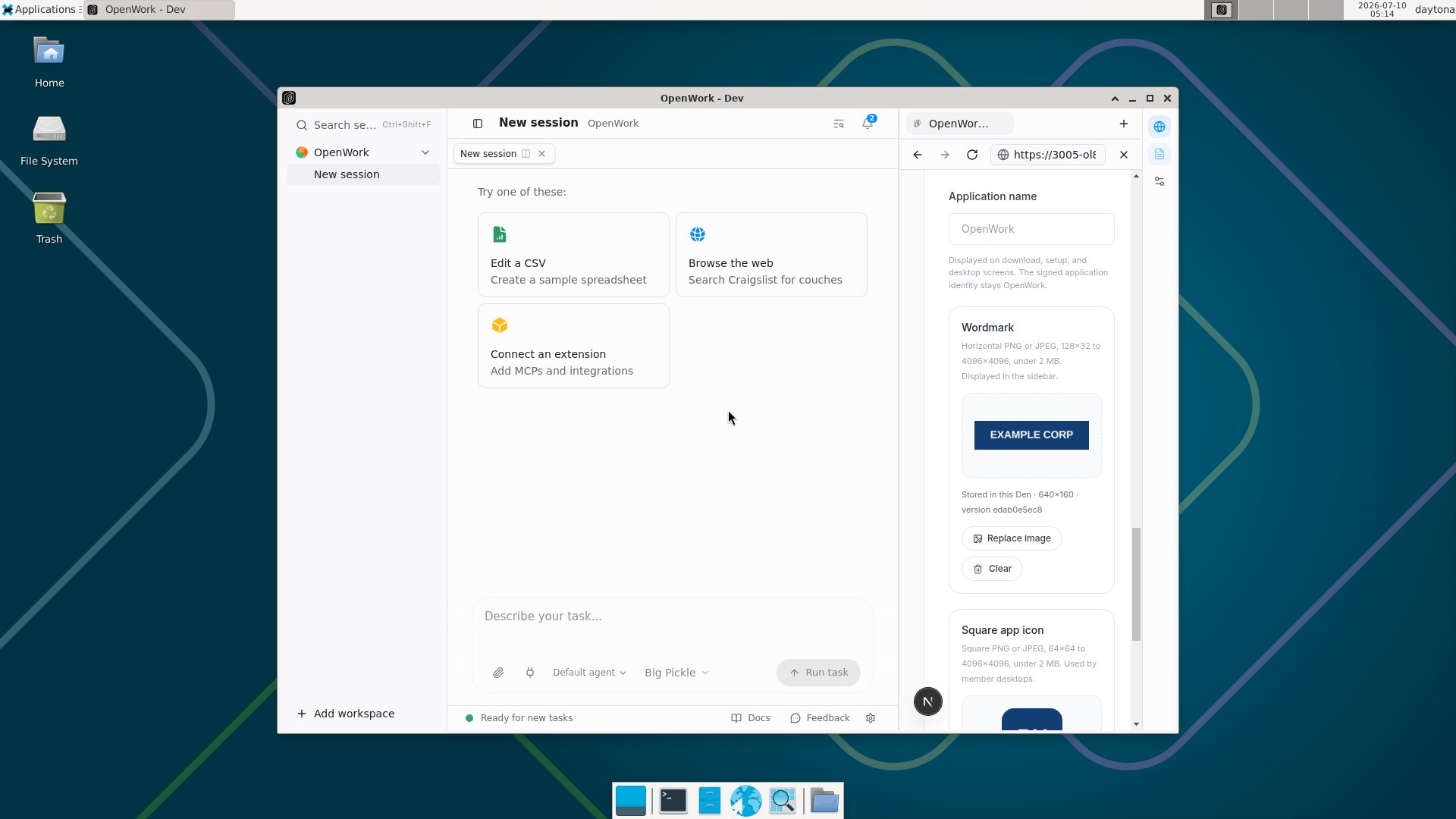
Upload the brand
You must be an organization owner, and the deployment must entitle the organization to desktop policies.- Open your on-prem Den web URL and select the organization.
- Go to
Org settingsand findBrand Appearance. - Enter the application name you want members to see.
- Upload a wordmark:
- PNG or JPEG
- 128×32 through 4096×4096
- horizontal aspect ratio between 1.5:1 and 8:1
- under 2 MB
- Upload a square app icon:
- PNG or JPEG
- square, from 64×64 through 4096×4096
- under 2 MB
- Select an accent color and click
Save settings.
When members receive a new icon
A desktop restart is not required to apply a new icon after the desktop has received the updated organization configuration. There are two separate timing steps:
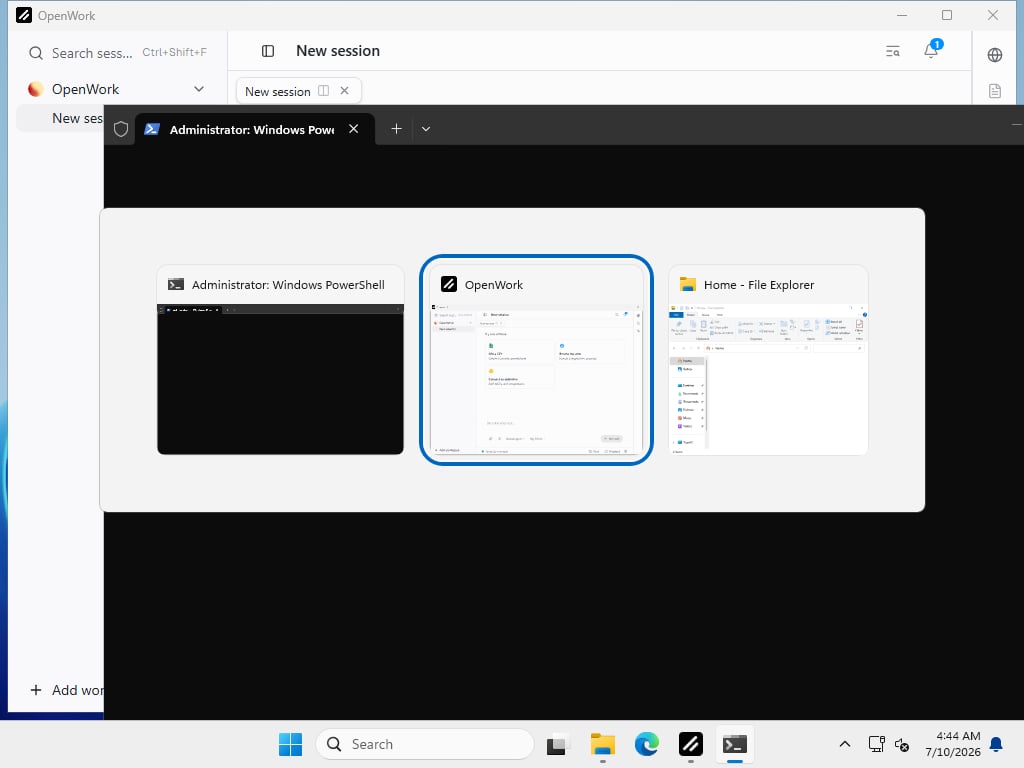
In the real Windows validation flow, the visible taskbar and Alt-Tab update completed without a restart in about 5.4 seconds after a controlled configuration refresh. Treat that as a validation result rather than a network SLA.
An already-running desktop that receives no refresh event can therefore remain on the old organization configuration for up to one hour. Closing and reopening OpenWork starts an immediate configuration fetch, so reopening is the fastest user action when an update appears stale.
On Windows, OpenWork briefly removes the live taskbar button, stages the new icon and AppUserModelID, and re-adds the button. The two 250 ms waits prevent Explorer from collapsing the operation and retaining the executable’s stock icon. This behavior uses Electron’s
setSkipTaskbar, setAppDetails, and setIcon APIs.
Relaunch and offline behavior
After the first successful download, the desktop caches a normalized PNG and, on Windows, a multi-resolution ICO. A relaunch applies that cached identity before the first window becomes visible. The branded icon therefore survives a desktop restart and can appear while Den is temporarily unreachable. Windows also creates or replaces a per-userOpenWork Organization Start Menu shortcut with the same AppUserModelID and icon. This does not require administrator access. Microsoft uses the AppUserModelID and RelaunchIconResource to associate taskbar grouping, pinning, relaunch information, and the icon. See Microsoft’s Application User Model ID guidance for the underlying Windows behavior.
Backup and restore
Brand image bytes are stored as raw binary data in theorganization_brand_asset MySQL table. Organization metadata stores the active version and signed Den URL.
Include these in the same operational plan:
- MySQL backups and restore testing
- the Kubernetes Secret or secret-manager value containing
BETTER_AUTH_SECRET - the private CA and DNS configuration used by desktop devices
BETTER_AUTH_SECRET with the database. Existing asset URLs contain signatures derived from that secret; changing it invalidates those URLs until the assets are uploaded again.
Because every Den API replica reads the same database, multiple replicas do not need a shared filesystem volume for branding.
Clear or replace branding
- Use
Replace imageand save to publish a new immutable version. - Use
Clearand save to return to stock OpenWork branding.
Troubleshooting
The dashboard saved, but a desktop still shows the old icon
- Confirm the member is signed in to the intended organization.
- Reopen OpenWork to force an immediate configuration fetch instead of waiting for the hourly background refresh.
- From the member device, confirm the configured Den origin resolves and the signed asset URL is reachable.
- Confirm the private CA is installed in the correct desktop trust surface. On Linux Electron, include the Chromium/Electron-compatible NSS or user trust store when required by the distribution.