

OpenWork Cloud
Bring OpenWork to your team.
Share skills, connections, policies, and workflows while keeping access under your control.
OpenWork Cloud is optional. The local desktop app stays free, requires no Cloud sign-in, and supports your own providers, skills, plugins, and custom MCP servers. Use Cloud when an organization needs to assign and manage those resources for a team.
- Open app.openworklabs.com in your browser.
- Follow the setup steps to name your organization and choose a starting point.
- Finish checkout if OpenWork Cloud asks for billing.
- Continue to the desktop sign-in steps below.
Configure org settings
Only the organization owner can change these settings.
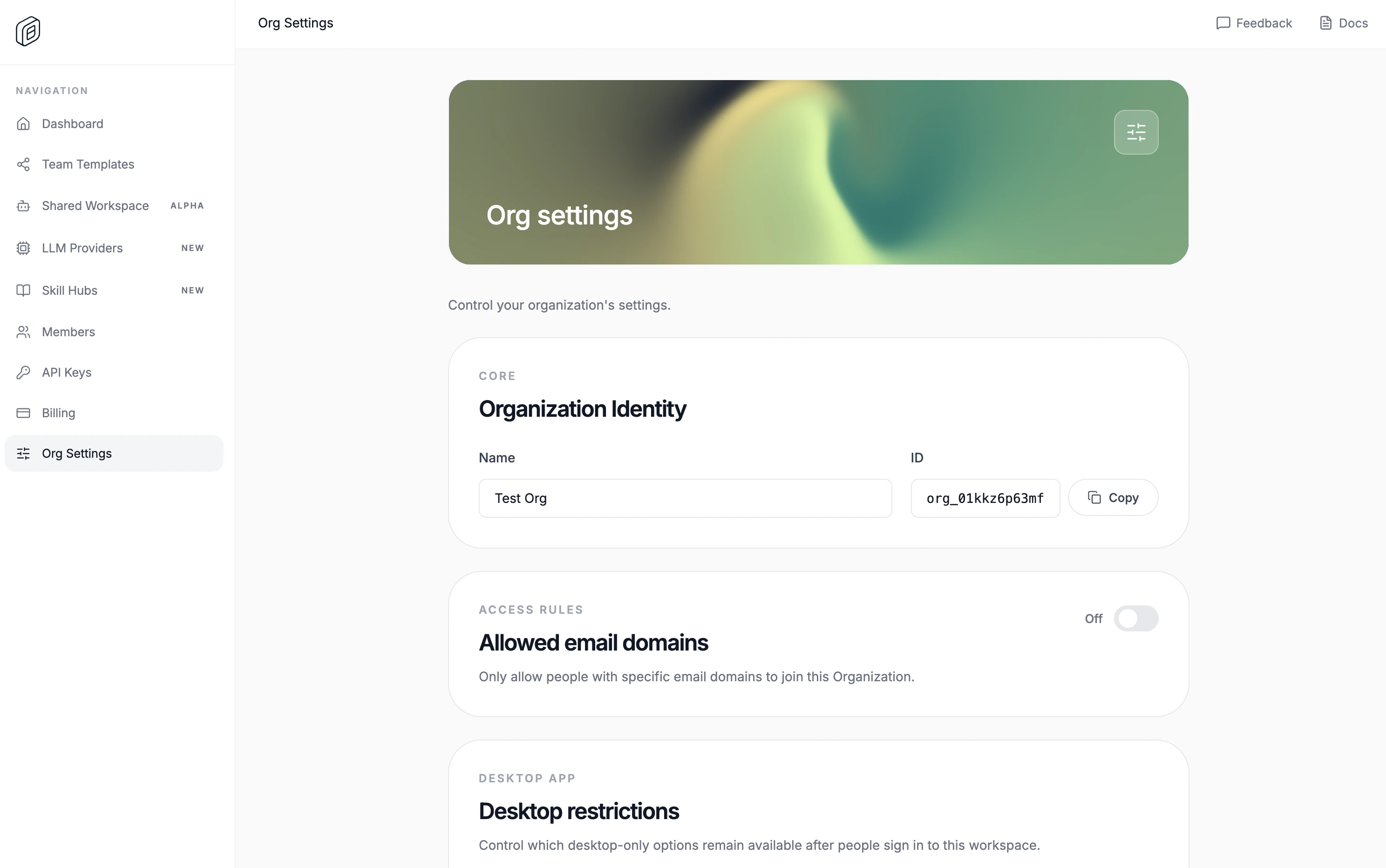
- In the cloud app, open Settings › General (the Org settings page).
- Set the name for your organization.
- Optional: enable Restrict allowed email domains and add the approved domains.
- Optional: under Allowed Desktop Versions, choose which desktop app versions can sign in to the organization.
Sign in from the desktop app
- Open Settings › Account.
- Click Sign in.
- Finish sign-in in your browser.
- If the browser does not return to OpenWork automatically, click Paste sign-in code, paste the
openwork://den-auth?...link or one-time code from OpenWork Cloud, then click Finish sign-in.
Cloud URL used by the desktop app
The desktop app uses a single Cloud URL: the Den webbaseUrl. The hosted
default is https://app.openworklabs.com.
All Cloud API and MCP traffic is derived from that one URL through the web app
proxy:
- Cloud API requests go to
<baseUrl>/api/den/v1/.... - OpenWork Cloud MCP requests go to
<baseUrl>/api/den/mcp/....
desktop-bootstrap.json; if that file is missing, it falls
back to https://app.openworklabs.com. When you change the Cloud URL in
Settings › Account, OpenWork writes the new baseUrl back to the bootstrap
file so the next launch uses the same source of truth.
Choose your organization
After sign-in, pick your organization in Settings › Account. Plugins and skills shared with you appear in Settings › Library, under From OpenWork.What to do next
- Send members to Connect your services to sign in to team-approved accounts from the desktop app.
- Use Connectors to publish a managed service and grant member or team access.
- Use Publish and copy a skill to share a skill or plugin with people or teams, or Collections to group several plugins for the same audience.
- Use OpenWork Web to give members a hosted OpenWork workspace in the browser, with nothing to install.
- Use LLM providers or custom LLM providers to manage shared model access.
- Use Members and RBAC to invite people, create teams, and control access.