

Before you start
- You’re an owner or admin in OpenWork Cloud.
- You can create apps in your Slack workspace. If your workspace blocks app installs, a Slack admin needs to approve the app.
- Allow about five minutes. You’ll switch between OpenWork Cloud and Slack’s app settings.
1. Start the setup
Start from either place:- In the desktop app: open Library › Add to library › Connector, pick Slack, then click Set up in OpenWork Cloud.
- In OpenWork Cloud: open Manage › Connectors › Add a connector, then pick Slack.
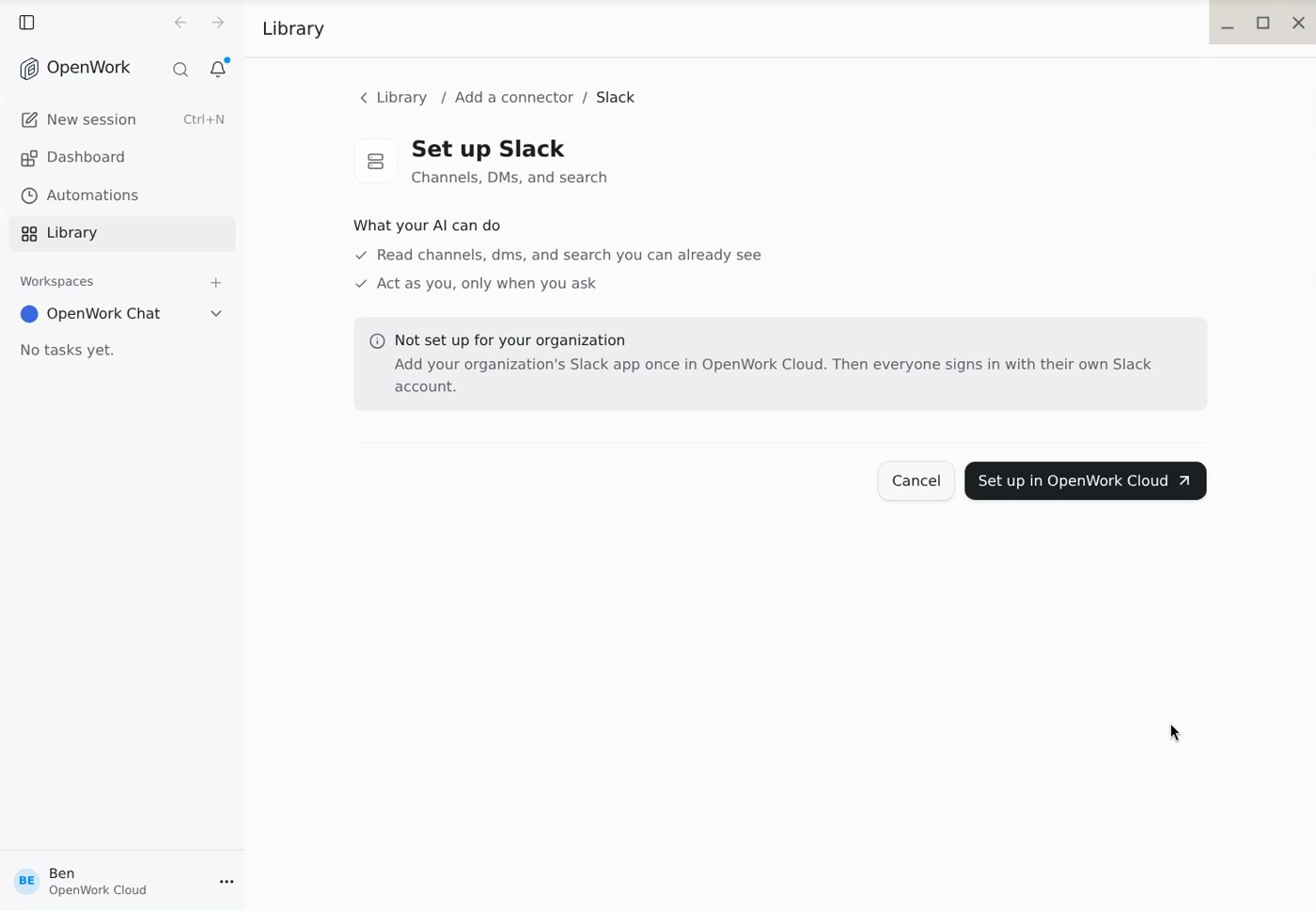
2. Choose what OpenWork can do
Pick one option. Nothing is selected for you.- Read and act (recommended): searches and reads messages, files and canvases, and posts, reacts and creates channels.
- Read only: searches and reads, but can’t post or change anything in Slack.
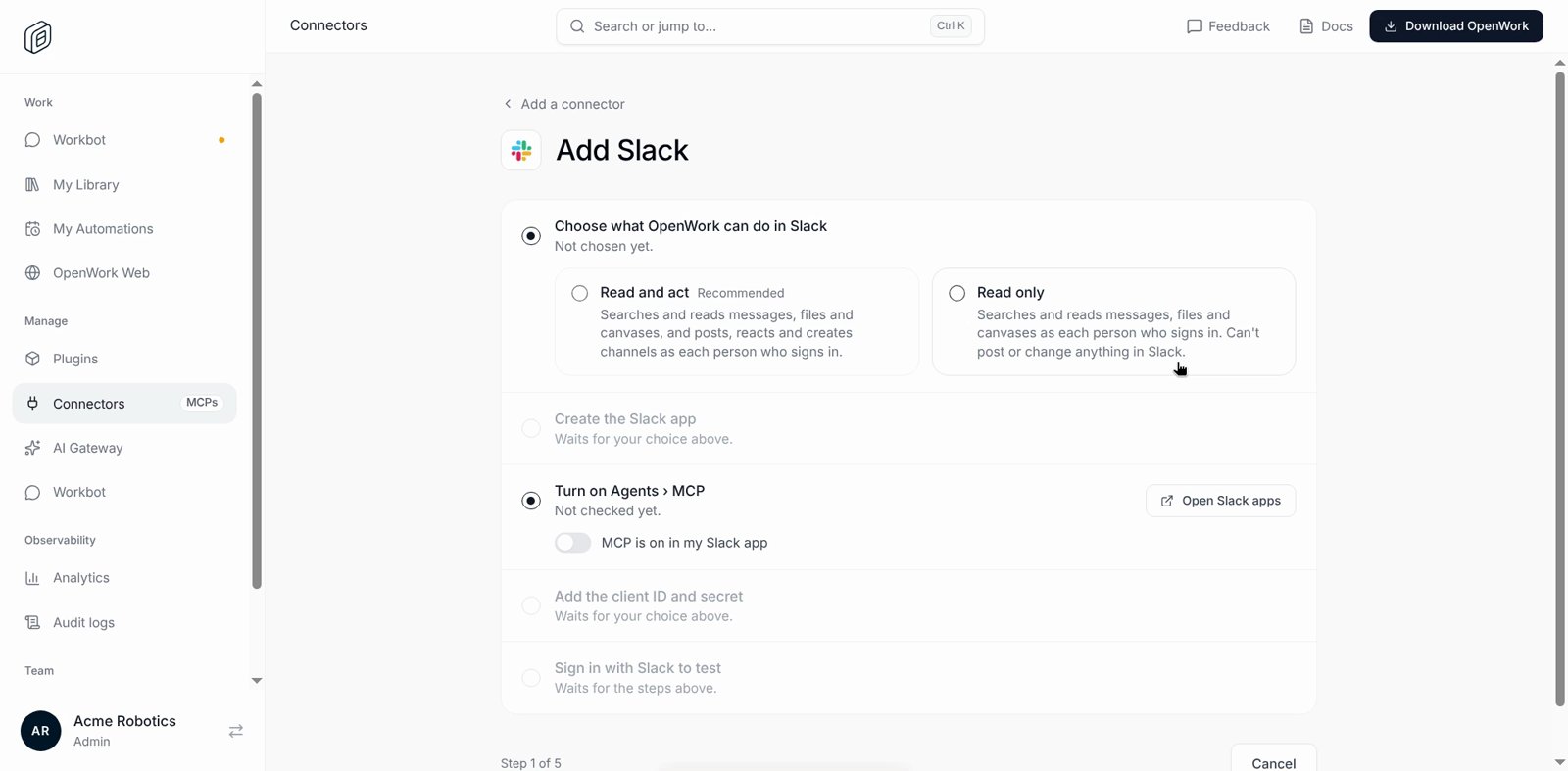
3. Create the Slack app
- Click Create app in Slack. Slack opens Create from a manifest with the redirect URL, scopes and MCP setting already filled in.
- Under Workspace, pick your Slack workspace, then click Next.
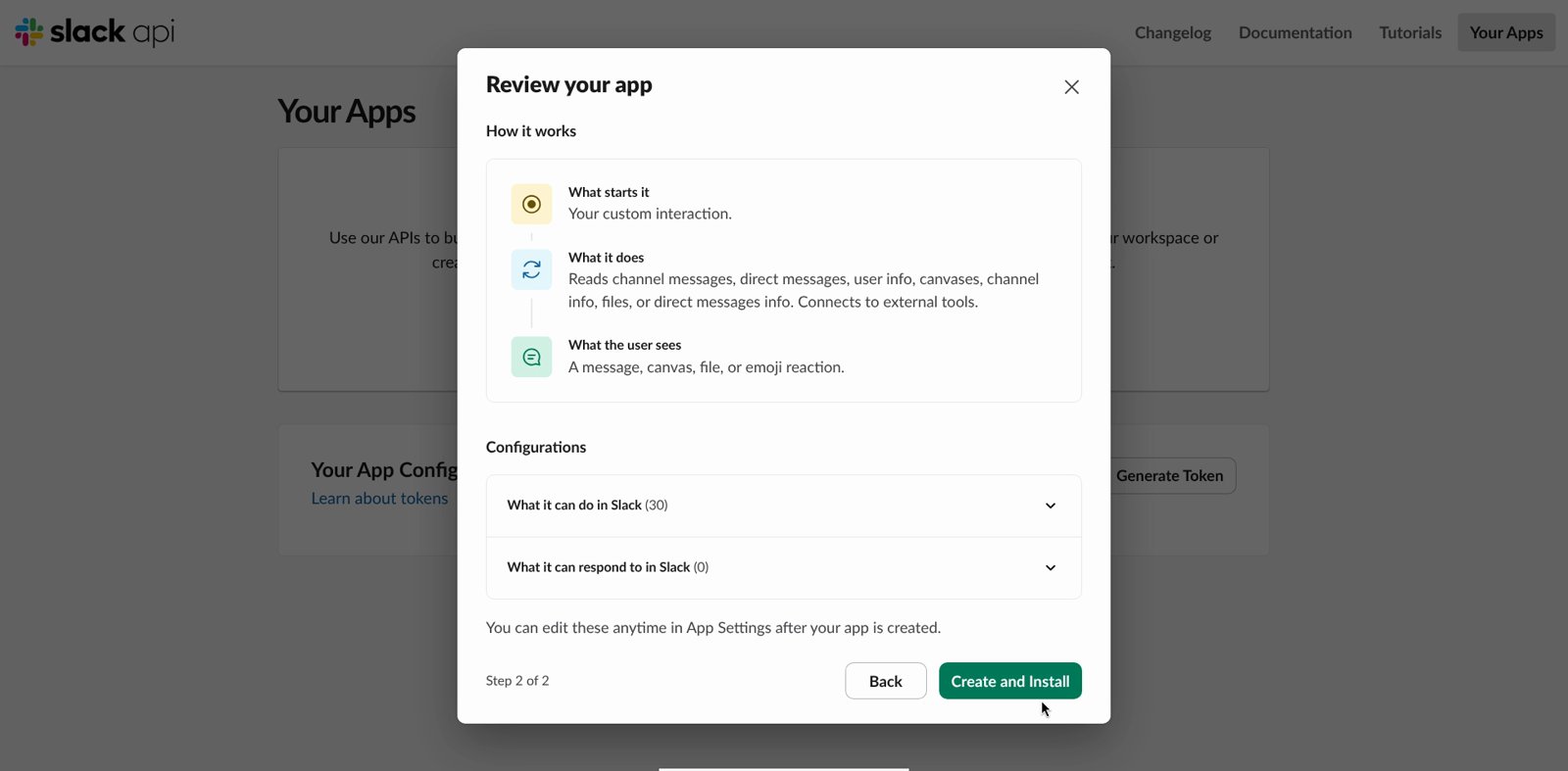
- Review the app and click Create and Install.
- Click Allow to approve the app in your workspace.
4. Add the client ID and secret
- In Slack, click Go to App Settings. Basic Information › App Credentials shows the Client ID and Client Secret.
- In Slack, open Agents and check that Slack Model Context Protocol (MCP) Server is on. Apps created from the manifest have it on already.
- Back in the Add Slack checklist, turn on MCP is on in my Slack app.
- Paste the Client ID and Client secret, then click Save changes.
5. Sign in to test
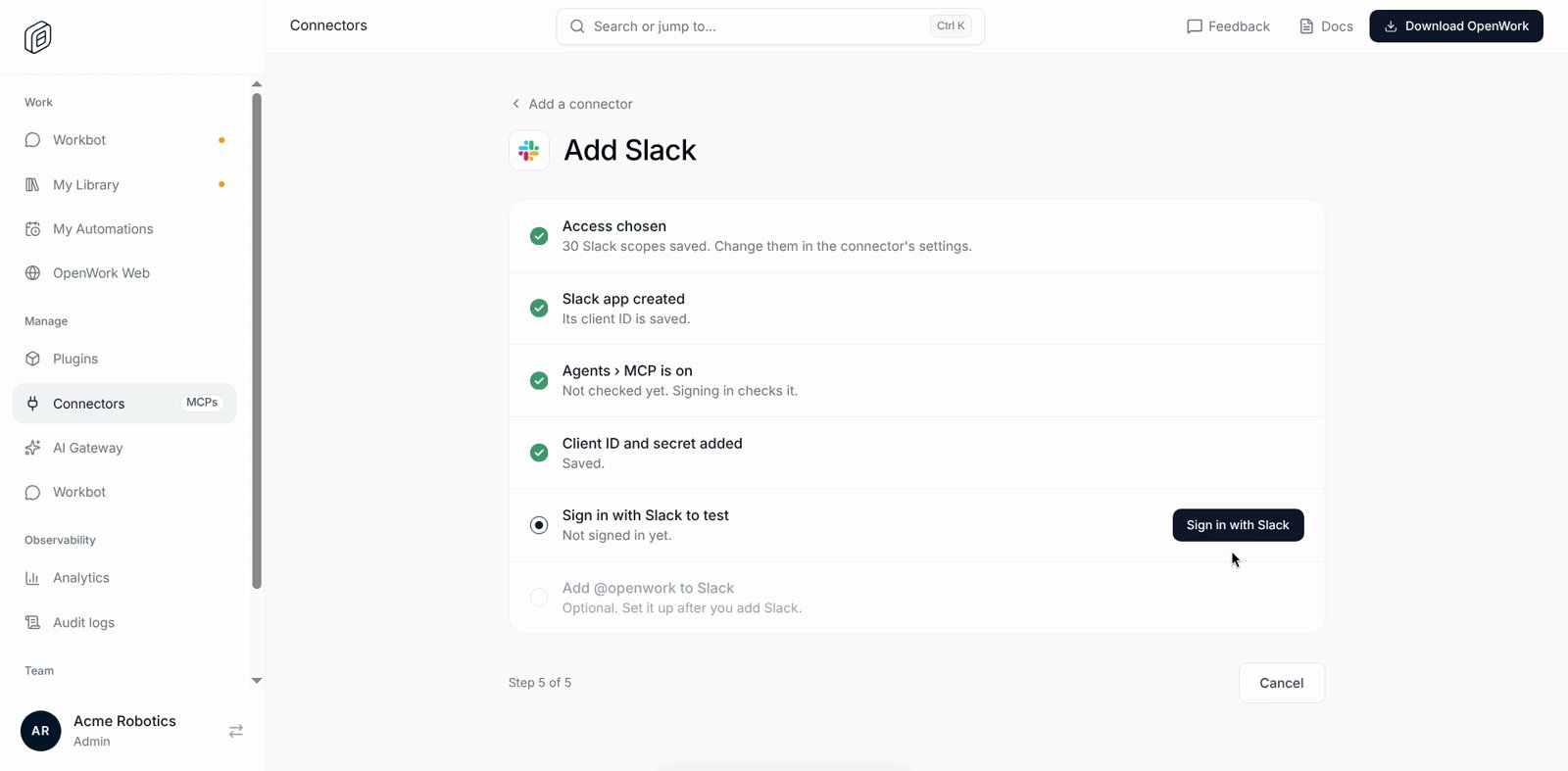
- Click Sign in with Slack and approve with your own Slack account.
- When Slack shows You’re connected, close that tab and go back to OpenWork Cloud.
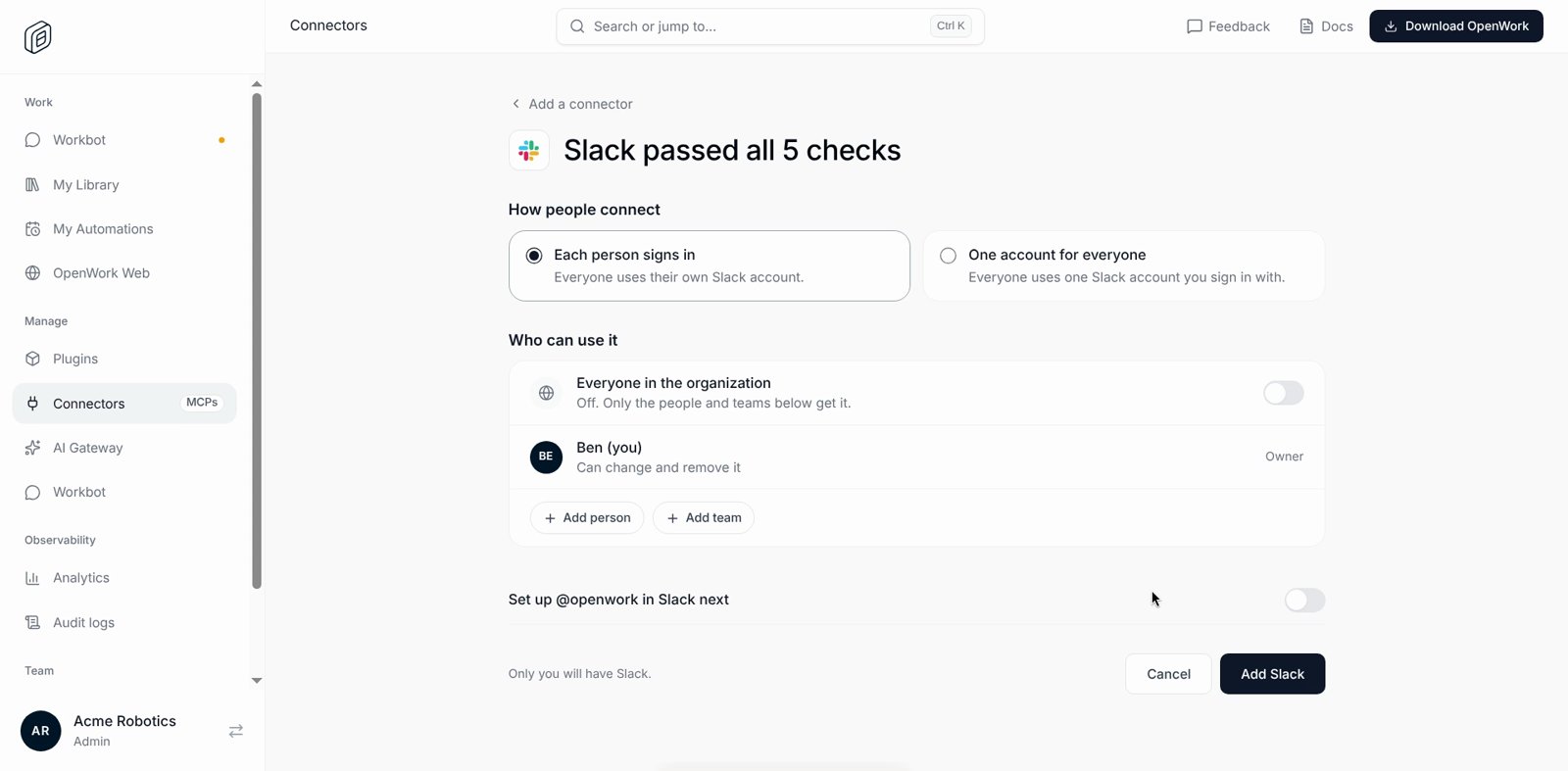
- The page should say Slack passed all 5 checks. If a check fails, it explains what to fix and offers Check again.
6. Choose who can use it and add Slack
- Under How people connect, keep Each person signs in so everyone uses their own Slack account.
- Under Who can use it, turn on Everyone in the organization, or add specific people and teams.
- Click Add Slack.
Everyone signs in
Each person connects their own Slack account once:- In the desktop app: open Library. Slack appears under From OpenWork. Click Sign in with Slack if it asks.
- On the web: open Your Connections and connect Slack.
Common questions
The desktop app still says “Not set up for your organization.” Go back to the Library. Slack shows as ready there once setup finishes in OpenWork Cloud. Sign-in fails with “The MCP server refused to start a session (HTTP 400).” In Slack, open the app whose client ID you saved, go to Agents, and turn on MCP. Then click Check again. See Slack connection troubleshooting. I don’t see the checklist, only the client ID and secret fields. Your OpenWork may not have guided setup turned on yet (for example, a self-hosted install). Follow the manual Slack steps instead. Which scopes does OpenWork ask for? Read and act asks for all 30 user scopes Slack’s MCP server offers. Read only asks for the same list without any:write scope. See Slack scopes.
Next
Want people to mention@openwork in Slack channels and DMs? See OpenWork in Slack (private alpha). It uses the same Slack app you just created.