

Connect your account
If your administrator has already added Google Cloud CLI:- Open Your Connections in OpenWork Cloud.
- Find Google Cloud CLI and click Connect.
- Choose your work Google account and review the requested access.
- Finish signing in, then return to OpenWork.
- Check that the connection shows Connected as you.
Try it in a chat
Start with a request that reads information. ReplaceYOUR_PROJECT_ID with
your Google Cloud project ID:
Use Google Cloud CLI to describe YOUR_PROJECT_ID. Use this project for both the Cloud CLI execution project and the command’s target project. Show me what you find.You can also ask:
- “List the APIs enabled in this project.”
- “Show me the Cloud Run services in this project.”
- “Explain what permissions I need for this task.”
Set up the connection for your team
You need an OpenWork owner or admin account and permission to configure your Google Cloud project and OAuth application.1. Prepare Google Cloud
Select a project with billing enabled. Enable the Cloud CLI Execution API (cloudcli.googleapis.com) and the APIs for the services your team will use.
Ensure callers have MCP Tool User (roles/mcp.toolUser) on the execution
project, plus the permissions needed for the resources they will access.
2. Create a Google OAuth app
In Google Cloud Console › Google Auth Platform, configure the app name, support email, and developer contact. Choose Internal if only users in your Google Workspace organization should sign in. For outside accounts, choose External and follow Google’s testing and verification requirements. Review Google’s policies before accepting them. Under Clients, click Create client:- Choose Web application.
- Give it a name such as OpenWork Google Cloud CLI.
- Add OpenWork’s exact OAuth redirect URL under Authorized redirect URIs.
- Click Create and keep the client ID and secret for the next step.
3. Add Google Cloud CLI in OpenWork
- Open Manage › Connectors and click Add connector.
- Click Add any MCP, or paste the server URL into the filter box.
- Use the settings below.
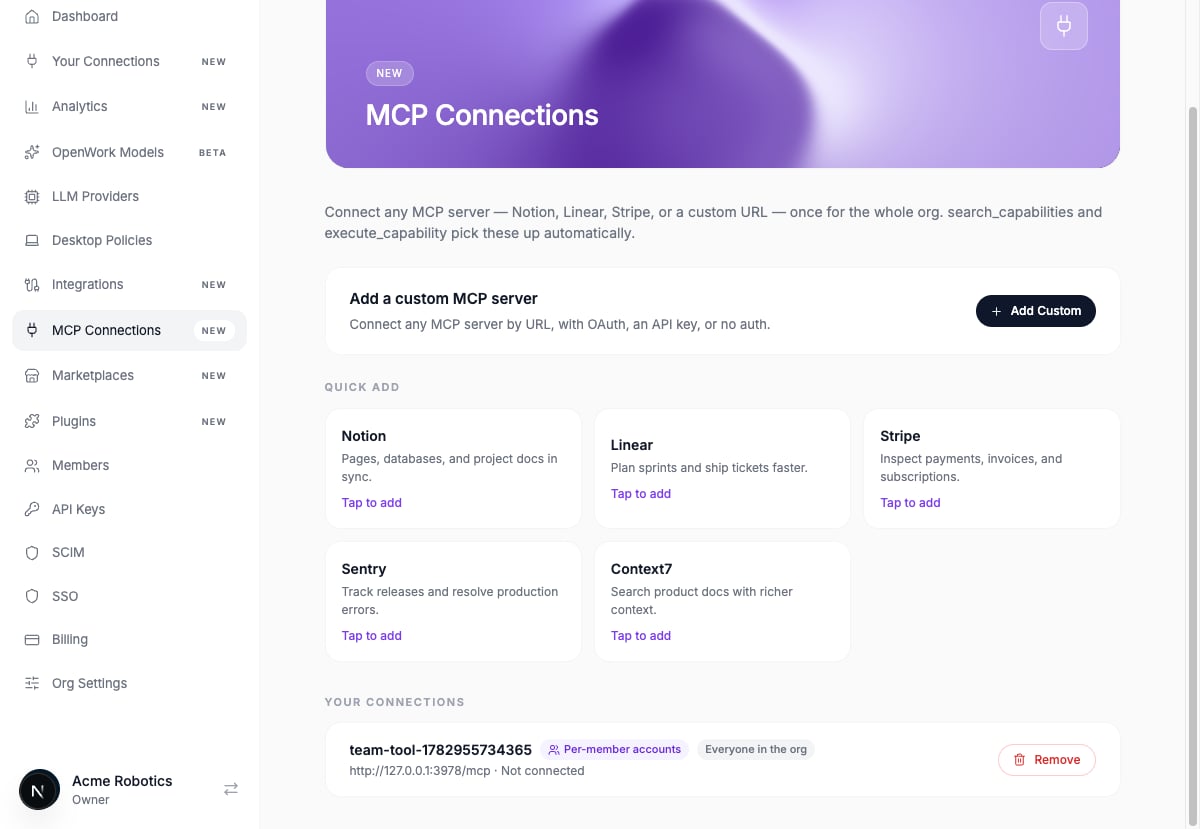
An example organization connection page. Add a custom MCP server to connect a service by its URL.
4. Check that it works
Connect your own account and try the read-only project prompt above. Admins can also open the connector’s ⋯ › Test tools menu to try its tools. For each request, the execution project and the command’s target project are separate choices. Include both in your prompt. Successful sign-in alone doesn’t prove you have permission for every resource operation. Once a read request succeeds, ask your team to connect their own accounts. See Sharing MCP connections for access settings and use in other MCP clients.Troubleshooting
OpenWork asks for a pre-registered OAuth client
Finish the Google OAuth app setup, then save its client ID and secret in the connector’s Settings. Repeating member sign-in won’t fix missing admin configuration.Google reports a redirect URI mismatch
Compare the address registered in Google with the exact OpenWork callback for this connection. The scheme, hostname, path, and trailing slash must match.Google won’t accept my account
An Internal OAuth app accepts accounts in its Google Workspace organization. Choose your work account, or ask the administrator whether outside accounts should be supported.A tool returns permission denied
Ask your Google Cloud administrator to check the execution project, MCP Tool User permission, resource permissions, enabled APIs, and organization policies.A command isn’t supported
The hosted server supports a subset ofgcloud and bq commands. Ask the
agent to check Google’s supported commands before trying an alternative.