

- Each person signs in. Everyone uses their own account. The AI acts as that person, with that person’s permissions. This is the default for apps that support sign-in.
- One account for everyone. You sign in once, or add one API key. Everyone who can use the connector acts as that account. This works well for a bot or service account.
Add a connector
- In OpenWork Cloud, open Manage › Connectors.
- Click Add connector.
- Pick an app from the list. To use another server, paste its MCP URL into the filter box, or click Add any MCP.
- On the Add page, OpenWork runs four checks: Finds ,
Knows how you sign in, Sign in to , and Has things your AI
can do. Finish any check that asks for something:
- If the app needs a key, paste it and click Save key.
- If the app needs its own OAuth app, enter the Client ID and Client secret, then click Save app.
- Click Sign in with . The app opens in a new tab. Come back when you’re done.
- Under How people sign in, choose Each person signs in or One account for everyone. Connectors that use an API key always use One account for everyone.
- Under Who can use it, turn on Everyone in the organization, or click Add person or Add team. At first, only you can use it.
- Click Add .
Apps in the list
The Add a connector list includes Google Workspace, Microsoft 365, GitHub, Notion, Linear, Stripe, Sentry, Granola, Polar, Slack, Exa, Render, and Context7.- Exa needs an API key from your Exa account. See Enable Exa search.
- Context7 needs no sign-in.
- Slack needs a Slack app first. See Slack.
- For Gmail, Google Calendar, Google Drive, and Microsoft 365, see Connect your services.
Change a connector
Open Manage › Connectors and click the connector. On its page you can:- Change Who can use it.
- Open Settings to change the name, the address, the sign-in method, How people sign in, the API key, the OAuth app, or the requested scopes. Click Save changes. If you change how the connector signs in, everyone has to sign in again.
- Use the ⋯ menu for Edit settings, Test tools, Sign everyone out, and Remove.
Test tools
Admins can try a connector’s tools before members use them:- Open the connector’s page and click ⋯ › Test tools. You can also open Settings › Tool Tester in the sidebar.
- Pick a connector to see its tools.
- Pick a tool, fill in its inputs, and run it. You can see what was sent and what came back.
What members see
In OpenWork Cloud
Your Connections lists each connector you can use and what it needs:- Connect your account: click Connect and sign in with your own account.
- Reconnect required: click Reconnect.
- Waiting for an admin to connect: an admin still needs to sign in with the shared account. Admins see Connect the org account and a Connect button on this row instead.
- Waiting for an admin to finish setup: an admin still needs to finish setting up the connector.
- Connected as you or Org account connected: ready to use.
In the desktop app
- Sign in to OpenWork Cloud in the desktop app.
- Open Settings › Library and choose the Connectors filter.
- If a connector shows Sign in, click Sign in. Your browser opens the app’s own sign-in page. Approve access, then return to OpenWork.
Ask your AI to use it
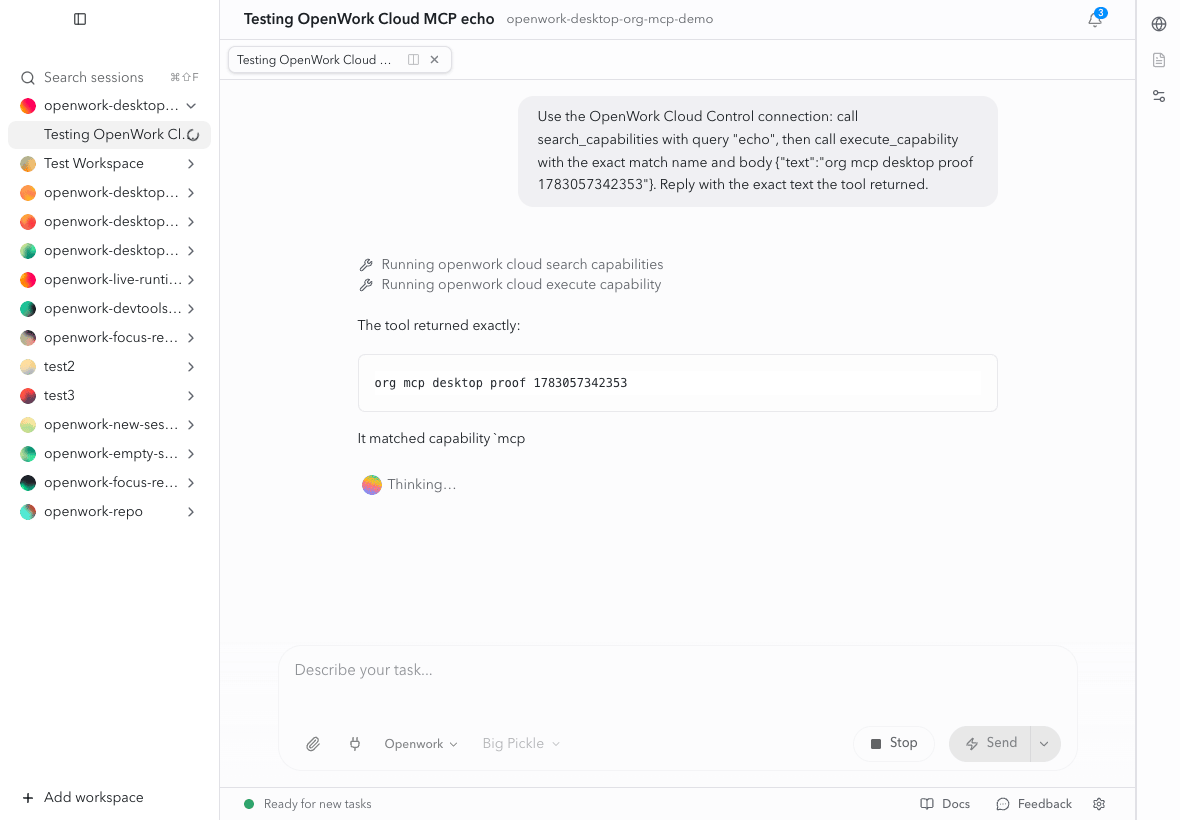
You don’t need to restart anything. Ask for something the app can do:Find the “Q3 launch” page in Notion and summarize it.The AI finds the right tool and runs it with your account, so your permissions apply. If a connector needs attention, the AI tells you which account needs action.
Use a connector in other AI apps
You can let people use a connector from Claude, Cursor, or any other app that supports MCP.- Open the connector’s page in Manage › Connectors.
- Expand Use in another app and click Turn on. You can also check Available in other MCP apps in the connector’s Settings.
Use a connection in another MCP client
- Open Your Connections, or the connector’s page if you’re an admin.
- Expand Use in another app and click Copy to copy the address.
- In your other app, add the address as a remote MCP server. Choose OAuth and sign in to OpenWork.
Local MCP servers
For Google’s hosted cloud tools, see Connect Google Cloud CLI. Add a custom MCP server works without an OpenWork Cloud account. Use it for local tools or servers your organization doesn’t provide. Publishing a connector never removes or changes anyone’s own local MCP setup.Slack
Want to mention@openwork or DM an assistant inside Slack? See OpenWork in Slack (private alpha). The assistant adds a bot installation to this existing user connection; it is available only to approved organizations.
Slack’s MCP server doesn’t let apps register themselves. A Slack admin creates a
Slack app once, and OpenWork Cloud uses that app for every member.
- Create or open a Slack app in Slack API apps.
- Open the Agents tab in the app settings and turn on the MCP toggle. Slack only serves MCP requests for apps that have it turned on.
- In OAuth & Permissions, add your OAuth redirect URL to the redirect URLs.
- Add the User Token Scopes your team wants the AI to use. See Slack scopes.
- Install or approve the app for your Slack workspace.
- In OpenWork Cloud, open Manage › Connectors › Add connector and pick Slack. Paste the Client ID and Client secret from the Slack app’s Basic Information › App Credentials, then click Save app.
- Click Sign in with Slack, then finish the steps in Add a connector.
- Members open Your Connections, or Settings › Library in the desktop app, and connect their own Slack account.
xoxb-... or xapp-...) for this. Keep the
client secret out of chats and source control.
Slack scopes
Slack MCP uses user token scopes. Choose the smallest set that matches what your team wants the AI to do. The Slack connector asks for a starting set of search, history,chat:write, and users:read scopes. You can change them in
the connector’s Settings under Requested OAuth scopes. Every scope
OpenWork asks for must also be added to the Slack app.
For a useful read-first setup, start with:
Troubleshooting Slack
- Members can’t connect, but the client ID and secret are right. Open the app in Slack API apps, go to the Agents tab, and turn on the MCP toggle.
- Slack says the redirect URL is invalid. Add your OAuth redirect URL to the Slack app’s OAuth & Permissions redirect URLs.
- Slack says a scope is invalid or unavailable. Remove it from the Slack app and from the connector’s Requested OAuth scopes, then try again. Slack workspace policies and plans can limit which scopes an app may ask for.
- The workspace blocks app installs. A Slack admin must approve the app first.
OAuth redirect URL
An OAuth redirect URL, also called a callback URL, is the exact address the provider sends the browser back to after a person approves access. Some providers, like Slack, ask you to register it when you create their OAuth app. It is not the MCP server URL. For OpenWork Cloud athttps://app.openworklabs.com, register:
https://api.openwork.example.com,
register https://api.openwork.example.com/v1/mcp-connections/oauth/callback.
Use the exact scheme, hostname, optional path prefix, and port from
DEN_API_PUBLIC_URL. Providers compare redirect URLs exactly.
Connections created with an older per-connection callback keep their
registered URL. Don’t change it just to reconnect.
If a provider refuses to register OpenWork (members see “Provider hasn’t
approved OpenWork yet”), or only accepts apps it registered ahead of time, send
the provider
Make your MCP server work with OpenWork.
It lists the redirect URL, the client metadata document, and the registration
methods OpenWork supports, plus a request template.
Technical details
Technical details
Discovery. By default, the AI reaches every connector through two OpenWork
Connect tools,
search_capabilities and execute_capability. The model sees
the same small tool list no matter how many connectors you add. Connectors with
Available in other MCP apps turned on also appear in OpenCode as their own
server, named openwork-direct-<name>-…. The desktop app never receives the
provider’s URL or token. It talks to Den’s per-connection endpoint with the
member’s own OpenWork credential. Access grants and tool settings are enforced
on every call. Turning the option off, removing access, or removing the
connector removes the server from every desktop on the next sync. Member-added
local MCP servers are never touched.Per-connection MCP URLs. Each Use in another app address serves one
connector. It doesn’t add that connector’s tools to the main /mcp/agent
gateway catalog. Don’t use Den’s internal /api/den proxy. Self-hosted
deployments use their configured public API base URL.MCP Apps. Clients that support MCP Apps can read the App HTML bound to
model-visible tools on these connectors. Arbitrary resources and app-only
helper tools stay unavailable to ordinary external clients, so every
interactive App callback may not work. Rendering also depends on the client’s
MCP Apps support.Token scopes. External provider tool calls require the caller’s mcp:write
scope, even when the provider advertises readOnlyHint: true. Discovery and
connection-status checks work with mcp:read. See
MCP token scopes.Availability. Connect is available in every organization, on Cloud and
self-hosted; there is no switch to turn on or off. Access still follows each
member’s grants and credentials. Missing credentials return needs_connection
and HTTP 409.Retired organization switch. Earlier releases let a platform administrator
turn Connect off for one organization (capabilities.mcpConnections). That
switch is retired on purpose: an organization that had it off now has Connect
on, including native Google Workspace and Microsoft 365 actions. To limit who
can use a service, set the connection’s access to specific teams, or remove
the connection. Google Workspace or Microsoft 365 set up with an older
organization OAuth client applies to the whole organization; remove that setup
to stop members from using it.