

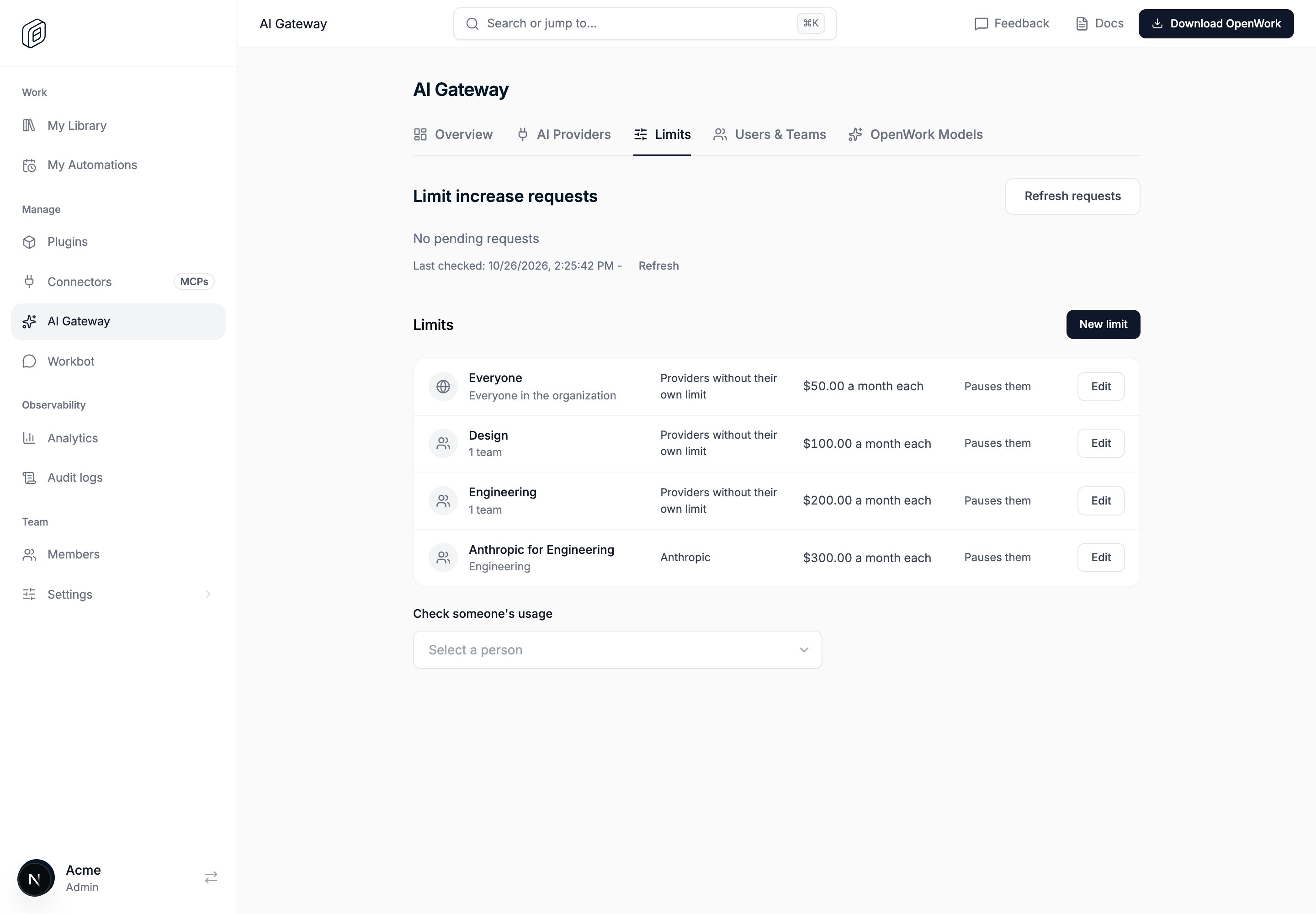
AI Gateway → Limits: each limit shows who it applies to, which providers it covers, its amount and what happens when someone reaches it.
How limits work
A limit is an amount of money, in US dollars, that a member can spend on AI models in a period of time. Spend is the estimated cost of each request, worked out as described in Token Costs.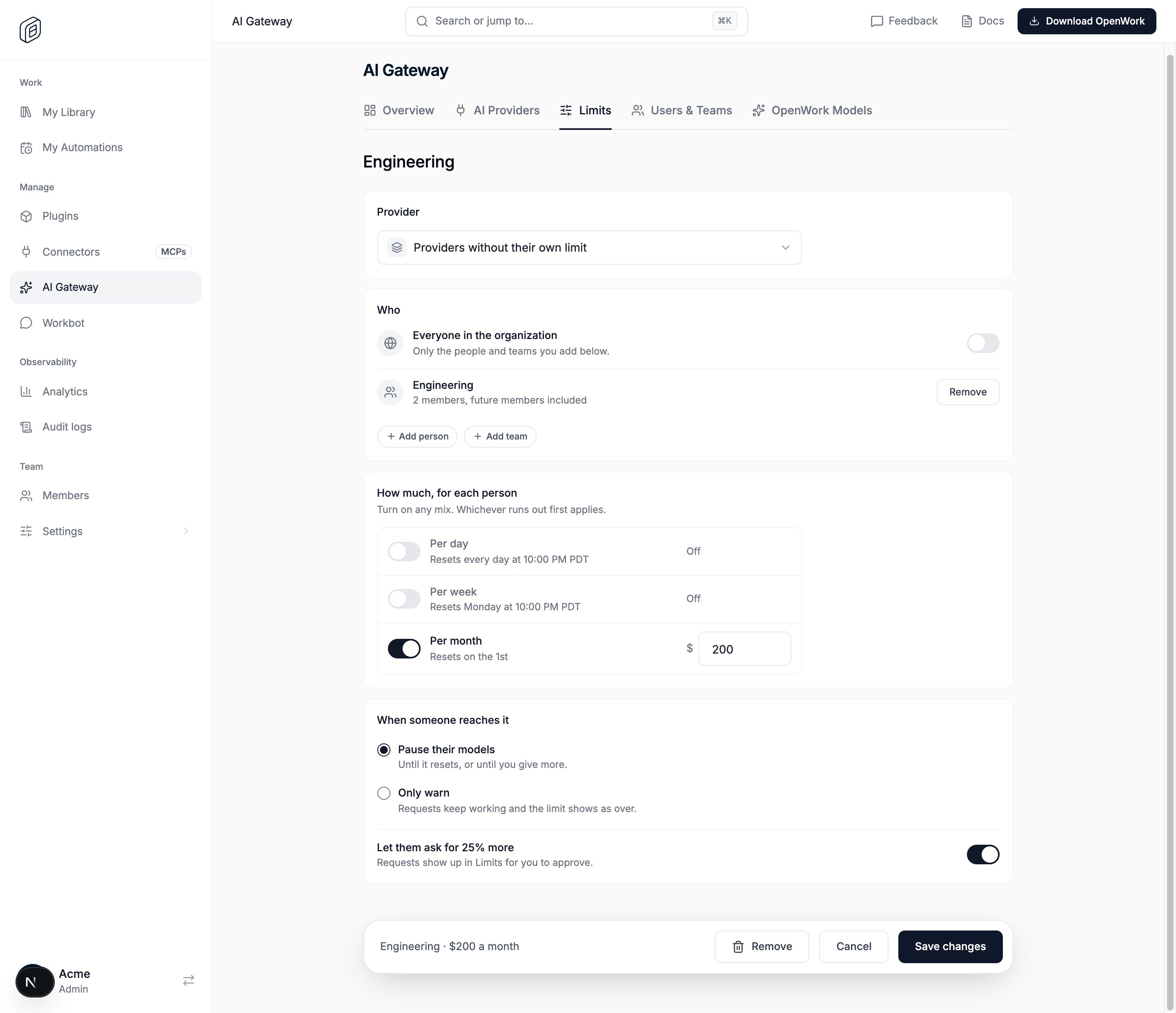
Editing a limit: choose the providers it covers, who it applies to, the amount for each period, and what happens when someone reaches it.
Time windows
Each limit can have a daily, weekly and monthly amount. Turn on whichever periods you need, for example $20 a day and $200 a month. Each period is counted separately, and a member must stay under all of them. Periods follow the calendar and reset at 05:00 UTC. OpenWork Cloud shows these times in your own time zone.When someone reaches a limit
You choose what happens when a member reaches a limit:- Pause their models. Requests through AI Gateway stop working until the period resets or you give them more.
- Pause their models, but let them ask for more. Requests stop, and the member can ask for 25% more. An admin approves or denies the request. See Increase requests.
- Only warn. Requests keep working, and the limit shows as over so you can follow up.
Applying limits
A limit can apply to:- Everyone. Every current member of the organization, and anyone who joins later.
- Teams. Every member of the teams you choose, including people who join those teams later.
- People. Specific members you choose.
When a member has more than one limit
A member can be covered by several limits at once, for example an Everyone limit and a limit for each of their teams. When that happens, the highest limit applies, and the lower limits are ignored. This is worked out for each period separately.Example
John is a member of the Design and Engineering teams. The organization has these monthly limits: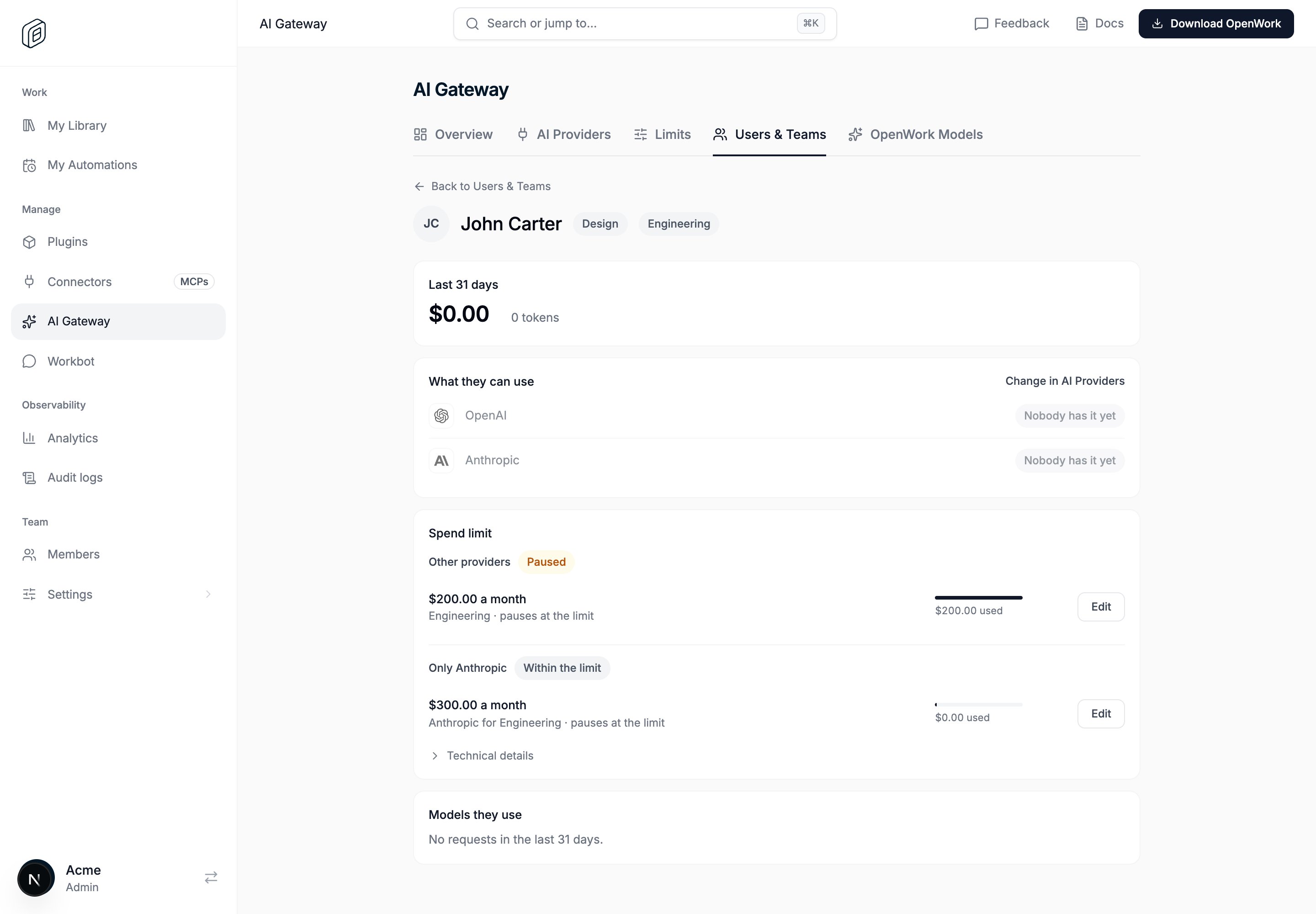
John's page: his Engineering limit applies to providers without their own limit and is used up, so his models are paused. His Anthropic limit is counted separately.
Increase requests
When a limit is set to Pause their models and Let them ask for 25% more is on, members who reach it can ask an admin for more instead of waiting for the period to reset.How members ask for more
Open Usage
Ask for more
Say what it is for
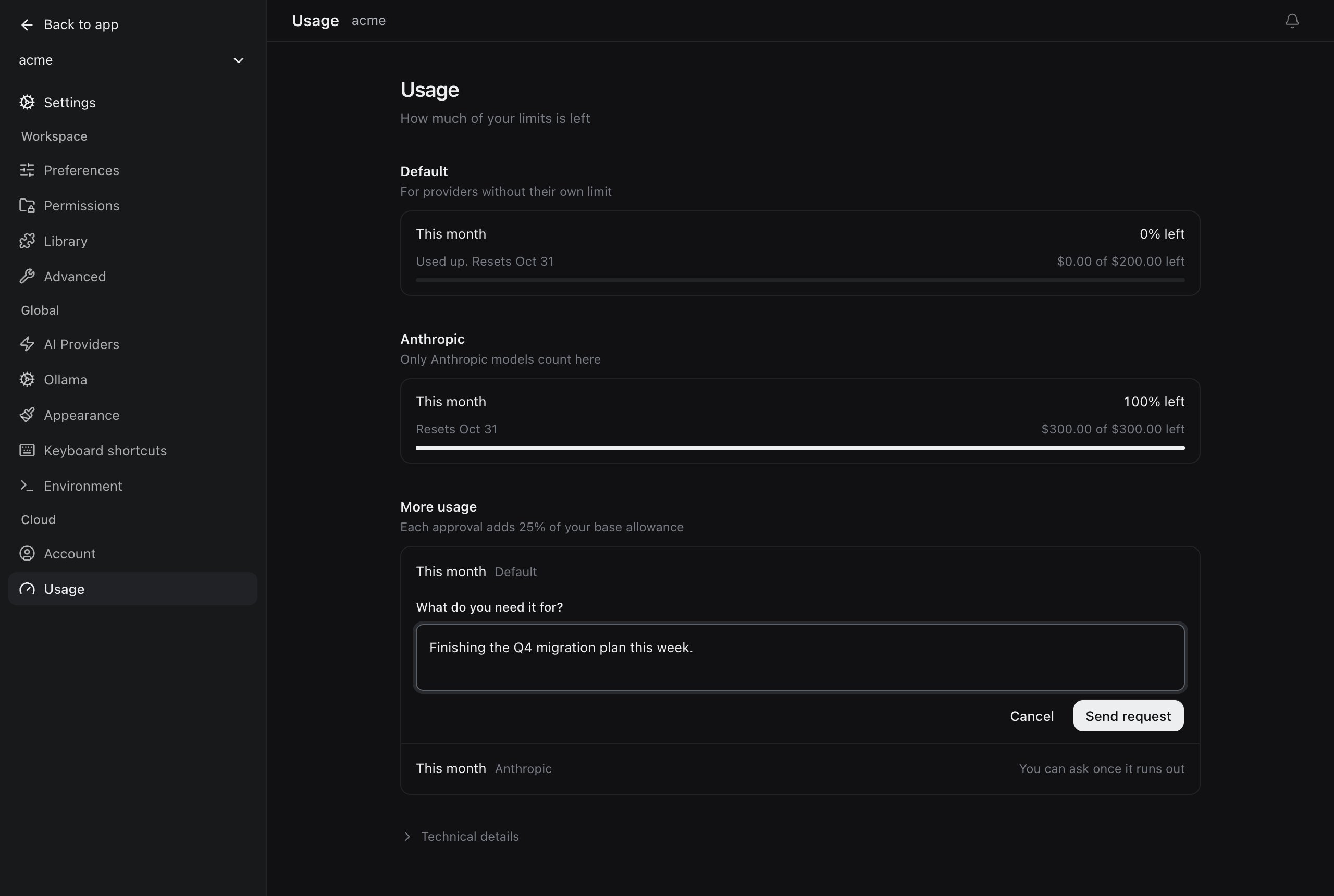
John has used his $200 monthly limit and asks for $50 more from Settings → Usage.
- A member can only ask once a limit has run out. Limits that still have room show You can ask once it runs out.
- Each limit period can have one request waiting at a time.
- After an approval, the member can ask again once the extra amount is also used up.
- A request that is still waiting when the period resets, or when an admin changes the limit, expires. The member can ask again if they reach the new limit.
How admins review requests
People with the Manage usage limits permission review requests. People with View usage limits can see them but not approve or deny them. Open AI Gateway → Limits. Requests waiting for review are listed under Limit increase requests, oldest first. Each request shows:- Who asked, their reason and when they asked.
- The limit and period it is for, how much they have used, and their current allowance.
- When the period resets, and how much approving adds.
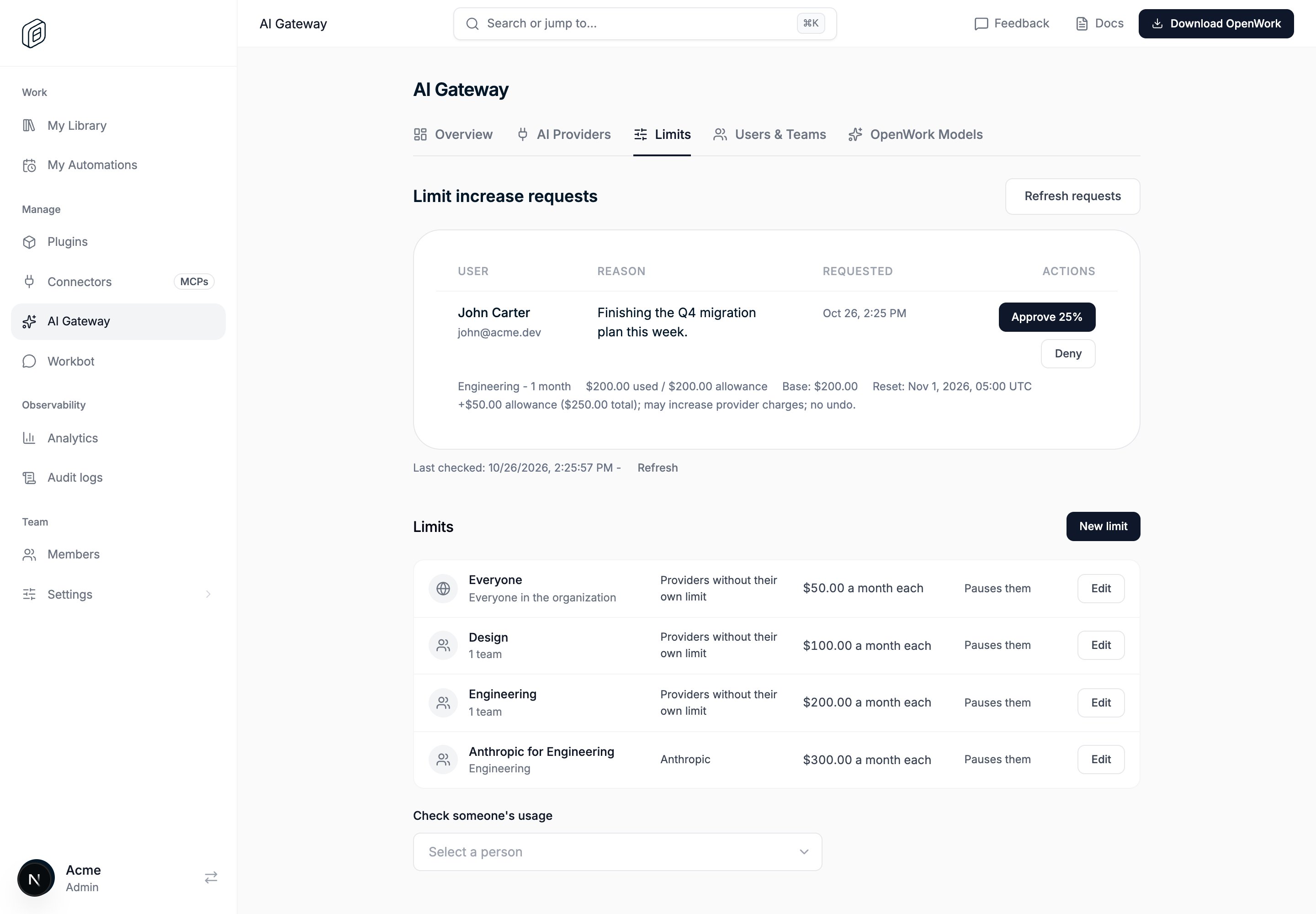
A waiting request: John has used his $200 Engineering limit. Approving adds $50, for $250 in total this month.
- The extra amount applies straight away, and the member’s models start working again.
- It is 25% of the limit’s amount, not of what is left. A $200 limit gets $50 more each time.
- It does not clear what the member has already spent or change when the period resets. When the period resets, the member goes back to the limit’s normal amount.
- It cannot be undone, and it can increase what your providers charge you.
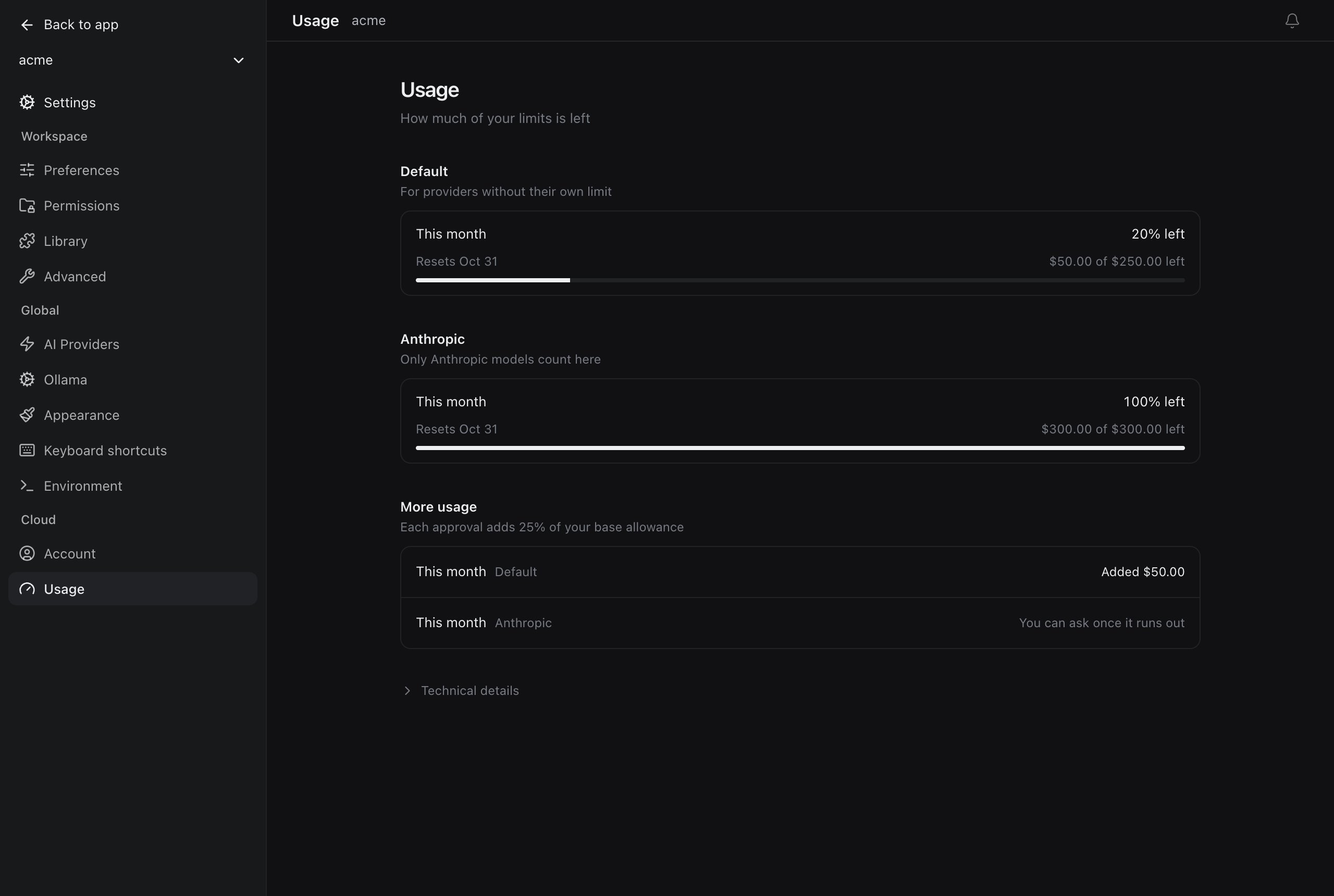
After the approval, John's Usage shows $250 for the month and Added $50.00.
Advanced: per-provider limits
By default, a limit counts spend across every AI provider your organization uses. You can also create a limit for one provider, such as Anthropic or a custom provider your organization added. Choose it under Provider in the limit editor. The default choice, Providers without their own limit, is a default limit.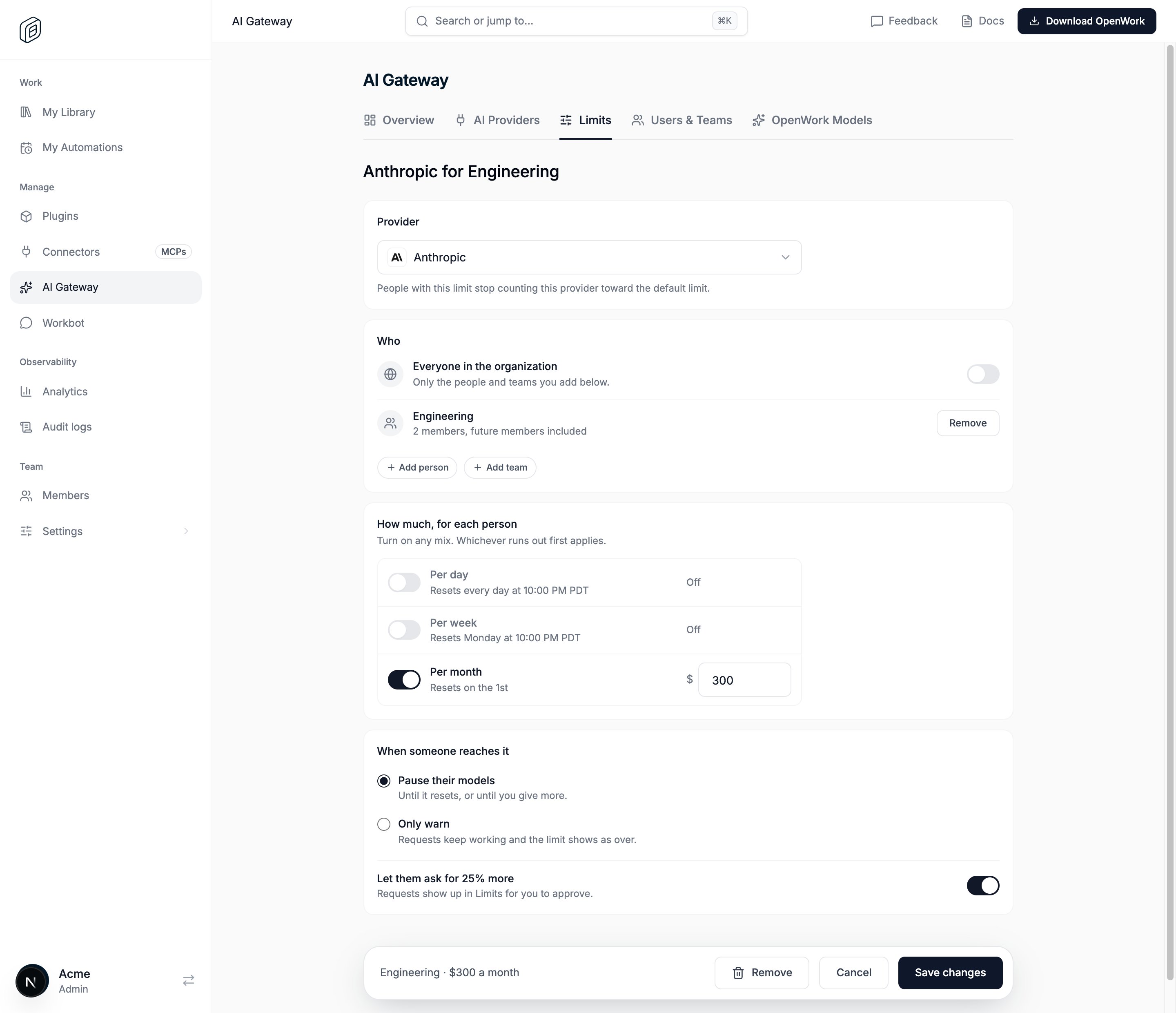
A provider limit: Anthropic spend for the Engineering team counts only toward this $300 monthly limit.
- When a member has a limit for a provider, their spend on that provider counts only toward that provider’s limit. It does not count toward their default limit.
- Spend on providers without their own limit keeps counting toward the member’s default limit.
- If a member has more than one limit for the same provider, the highest one applies, the same as for default limits.
- A provider limit only sets the periods it includes. If the default limit has a daily amount and the provider limit only has a monthly one, that provider has no daily limit for the member.