

Before you start
You need an OpenWork role that can open and save the connector settings. Organization owners and admins have it by default. A custom role needs View all connections, Manage connections (to add the connector), View OAuth apps, and Manage OAuth apps. You also need permission to manage an app registration in your company’s Microsoft Entra tenant. Organization-wide consent also requires an authorized Entra administrator, such as a Cloud Application Administrator or Application Administrator for the delegated permissions used here. Azure subscription Owner access alone does not grant that authority. Use your existing company tenant and sign-in configuration. Connecting Microsoft 365 does not require changing your domain federation or SSO setup.1. Open the connection settings
In OpenWork Cloud, open Manage › Connectors › Microsoft 365 › Settings. If Microsoft 365 is not listed, choose Add connector and select it. Copy the Redirect URI shown by OpenWork. Hosted OpenWork uses:2. Find or register your Microsoft app
Open the Microsoft Entra admin center, select your company directory, and go to Entra ID › App registrations › All applications. Select your existing OpenWork Microsoft 365 app. For a new setup, choose New registration, name it OpenWork Microsoft 365 Connector, and select the single-tenant account type (Single tenant only or Accounts in this organizational directory only, depending on the portal). Register the app, then open Authentication, choose Add Redirect URI (Add a platform in older portals), select Web, and add the exact callback copied from OpenWork. If registration already offered a redirect URI field, you can set the Web callback there instead.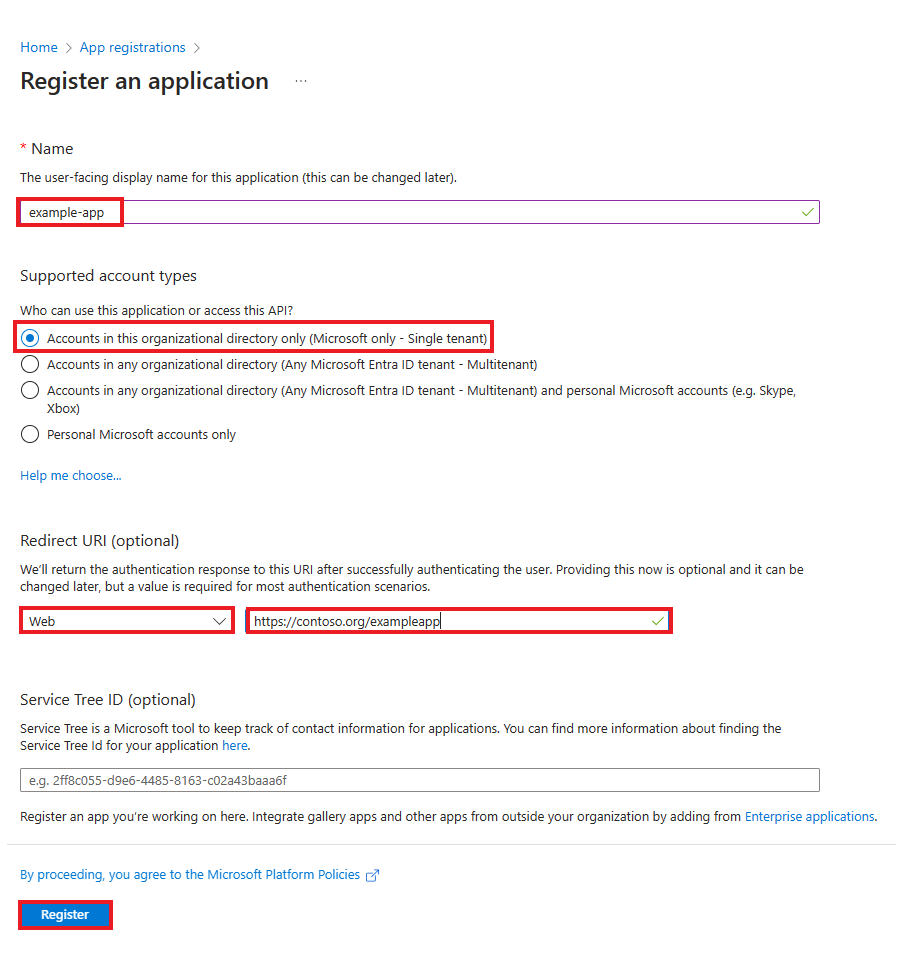
Microsoft's example registration form. Use your own tenant and the callback shown by OpenWork.
Object ID is a different identifier. Do not use it as the Client ID.
See Microsoft’s registration instructions.
3. Create and save a client secret
In the same app registration:- Open Certificates & secrets › Client secrets.
- Choose New client secret.
- Add a description and select an expiry consistent with your company’s policy.
- Choose Add and immediately copy the complete Value.
- Return to OpenWork’s Microsoft 365 settings. Enter the tenant ID, client ID, and secret Value. For an existing connection, choose Replace credentials to reveal these fields.
- Save the credentials using the button shown by OpenWork.
OpenWork’s Microsoft 365 connector currently accepts a client secret, not a
certificate or federated credential. Microsoft recommends certificate or
federated credentials rather than secrets for production applications. If your
organization prohibits client secrets, this setup does not meet that policy;
consult your security administrator before proceeding.
4. Choose what your agent can do
Under What your AI can do, enable the capabilities your organization needs and choose Save permissions.
Draft access requires mailbox read/write permission. It does not enable the
separate Send Outlook email option. File permissions that mention “all
files” can include shared files the member can access beyond their own drive,
such as SharePoint libraries and files shared in Teams. Without them, file search
and pulls cover only the member’s own OneDrive.
Microsoft’s default consent policy does not let members approve the all-files
or SharePoint sites permissions themselves, so an administrator must grant
consent for the organization (step 5) before members can connect with them.
Review Microsoft’s permission descriptions before consenting. They can cover
more than one OpenWork action.
Microsoft Graph permissions
OpenWork requests delegated permissions, not application permissions. The enabled choices determine the scopes requested during sign-in:
Sign-in also requests
openid, profile, email, offline_access, and
User.Read to identify the member and renew their connection. If you configure
permissions manually in Entra, use API permissions › Add a permission ›
Microsoft Graph › Delegated permissions. Add only the permissions needed for
your enabled choices; do not substitute application permissions.
Change permissions for an existing connection
Saving permissions does not add new Microsoft grants to existing member connections. If a new choice needs access their account has not already granted, grant any required admin consent and ask affected members to sign in again. OpenWork shows Sign in (or Reconnect) for those accounts. An existing broader grant can already cover the new choice, so not every change requires sign-in.5. Grant admin consent
An authorized Entra administrator chooses Sign in on the OpenWork connection and reviews the permissions requested for the exact app. To approve them for the organization, select Consent on behalf of your organisation and Accept. Members still sign in separately. OpenWork uses delegated access through each member’s account. You can review the saved consent in Entra ID › Enterprise apps › your app › Permissions.
Microsoft's example of the enterprise application Permissions page. Review your app's actual permissions before approving them.
User.Read permission does not cover mail,
calendar, file, or chat access. See Microsoft’s
admin consent guide.
6. Connect and test a member account
Each person opens My Library in OpenWork Cloud and chooses Sign in on Microsoft 365. On the connections page that opens, they choose Sign in again on the highlighted Microsoft 365 row, select their company account, and complete sign-in. In the desktop app, open Library from the main sidebar (or Settings › Library), choose the Connectors filter, and select Sign in for Microsoft 365. If Microsoft 365 is missing from their Library, an OpenWork administrator should check that the connector is set up and the member has access. Confirm the account shows as connected, then try a read-only request for an enabled service:Show my upcoming Outlook calendar events for tomorrow. Do not change anything.A successful calendar read verifies calendar access. Other services can require their own Microsoft 365 license, provisioning, and enabled permissions.