

Prompt cards work today. Most other desktop policy controls are paused while they are redesigned, but organization prompt suggestions still reach members’ desktop apps. See Desktop policies.
Create prompt cards
- Open app.openworklabs.com and go to Manage › Desktop policies.
- Choose the audience:
- For everyone, click Edit on the policy marked Default.
- For specific teams or members, click New policy.
- Turn on Organization prompt suggestions.
- Fill in First prompt and Second prompt. Optional third prompt can stay empty.
- For each prompt, enter:
- Description: the card’s title, up to 120 characters.
- Prompt: the text that goes into the message box, up to 500 characters.
- For a new policy, choose who sees it under Members and Teams.
- Click Create policy, or Save changes for an existing policy.
When more than one policy matches
Members see one set of prompt cards. Prompt sets never mix.- If a member matches several policies with prompts, the policy with the highest Priority wins. On a tie, the policy created first wins.
- If no matching policy has prompts, the member sees the default policy’s prompts.
- If the default policy has no prompts either, the member sees OpenWork’s standard suggestions.
- Disabled policies don’t count.
What members see
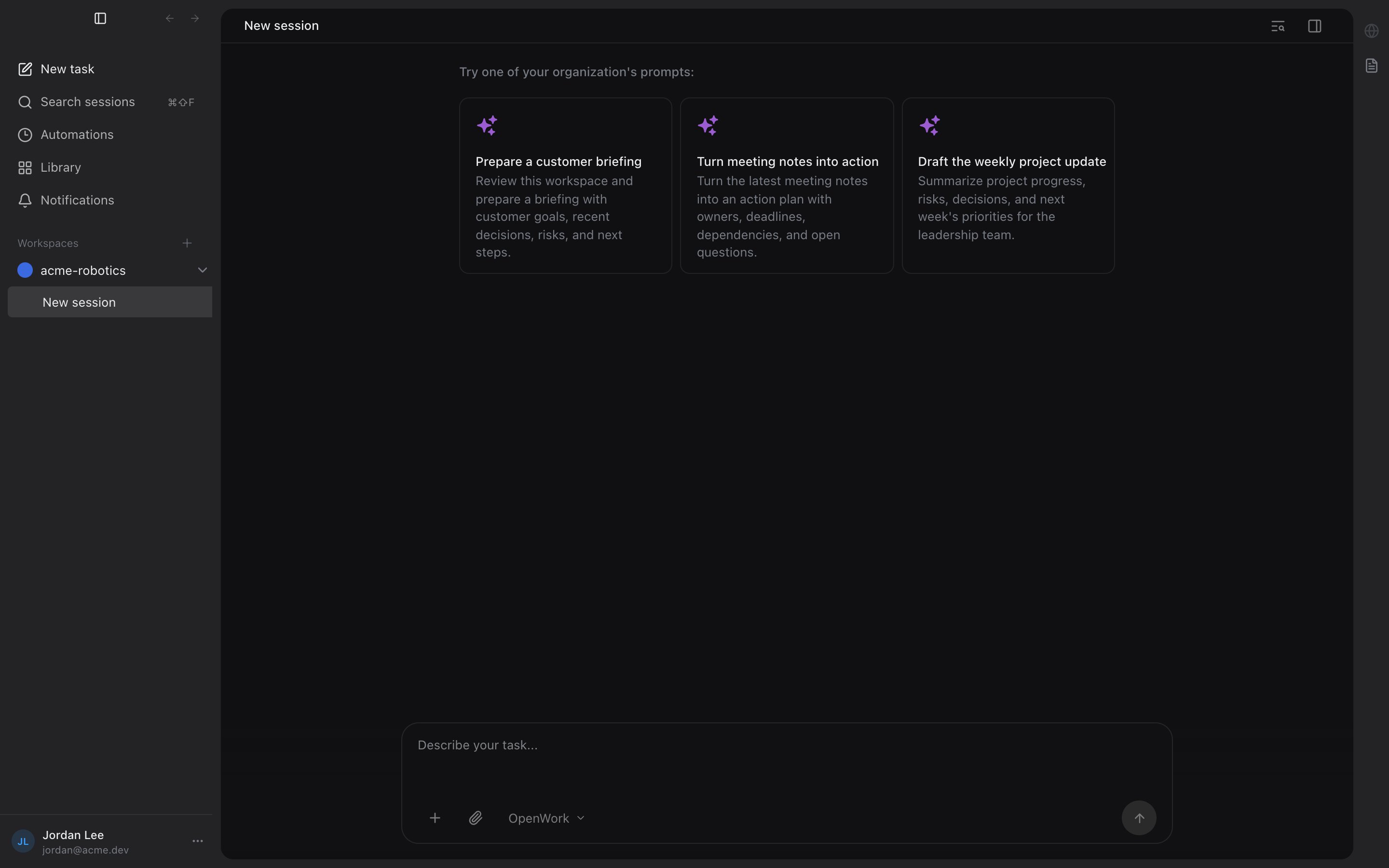
- Cards appear on the screen a member sees when they start a new session.
- The Description is the card title. If you leave it empty, the card is titled “Organization prompt 1”, “Organization prompt 2”, and so on.
- The Prompt appears on the card and fills the message box when the member clicks it. The member can edit it before sending. Nothing is sent automatically.
Technical details
Technical details
- Prompts are stored in the desktop policy document as
onboardingPrompts(2 or 3 strings) andonboardingPromptDescriptions(the same number of strings). - Members receive the resolved prompt set in their desktop config from
GET /v1/me/desktop-config. - Ties on Priority are broken by earliest creation time, then by the lowest policy ID.
- Desktop policy routes return HTTP
402when the organization doesn’t have the Enterprise plan.