Local workspace setup. Custom MCP servers are supported without an OpenWork Cloud account, so this path stays free and local to the current workspace. For a connection managed and assigned by your organization, use OpenWork Cloud connectors under Manage › Connectors.
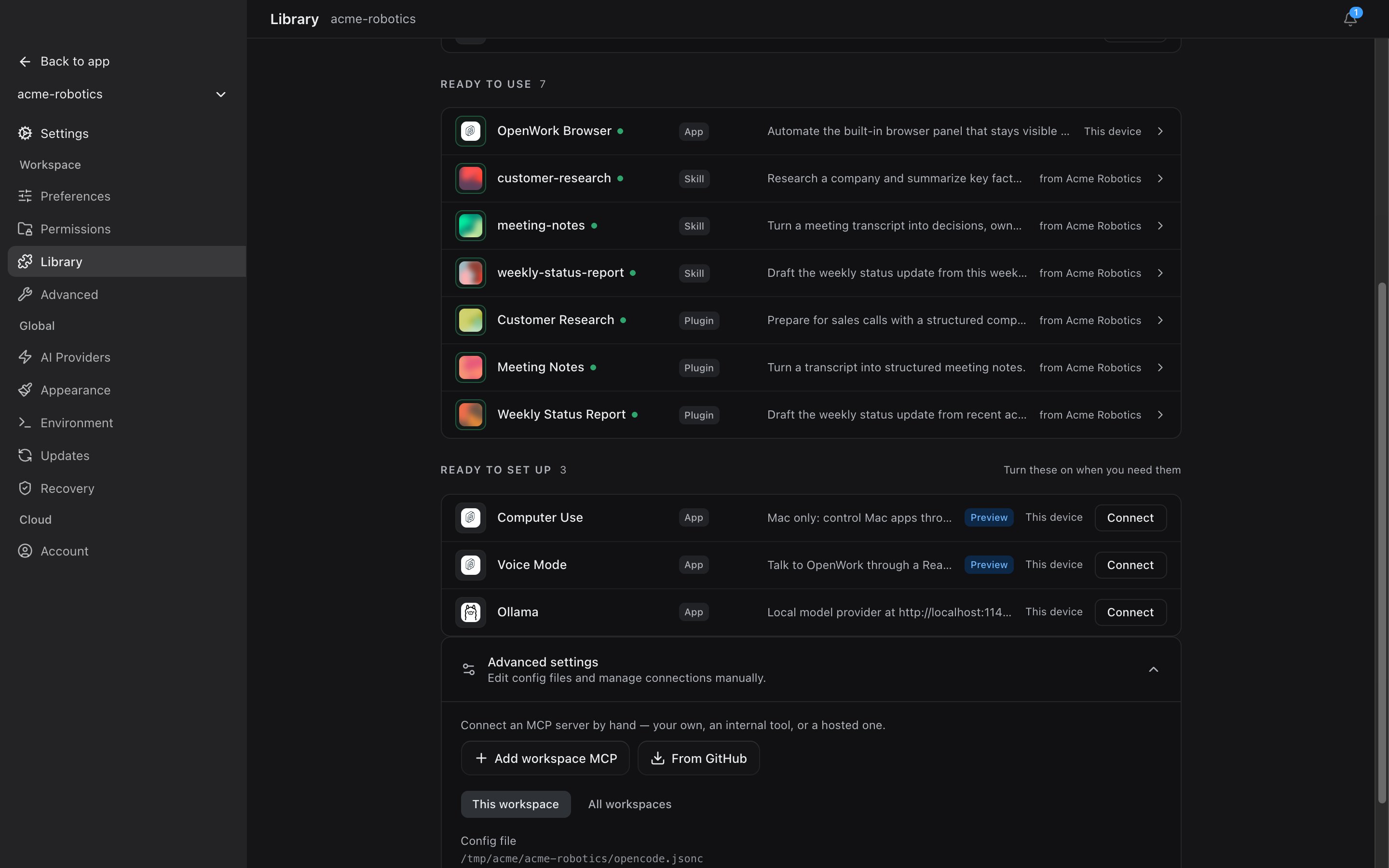
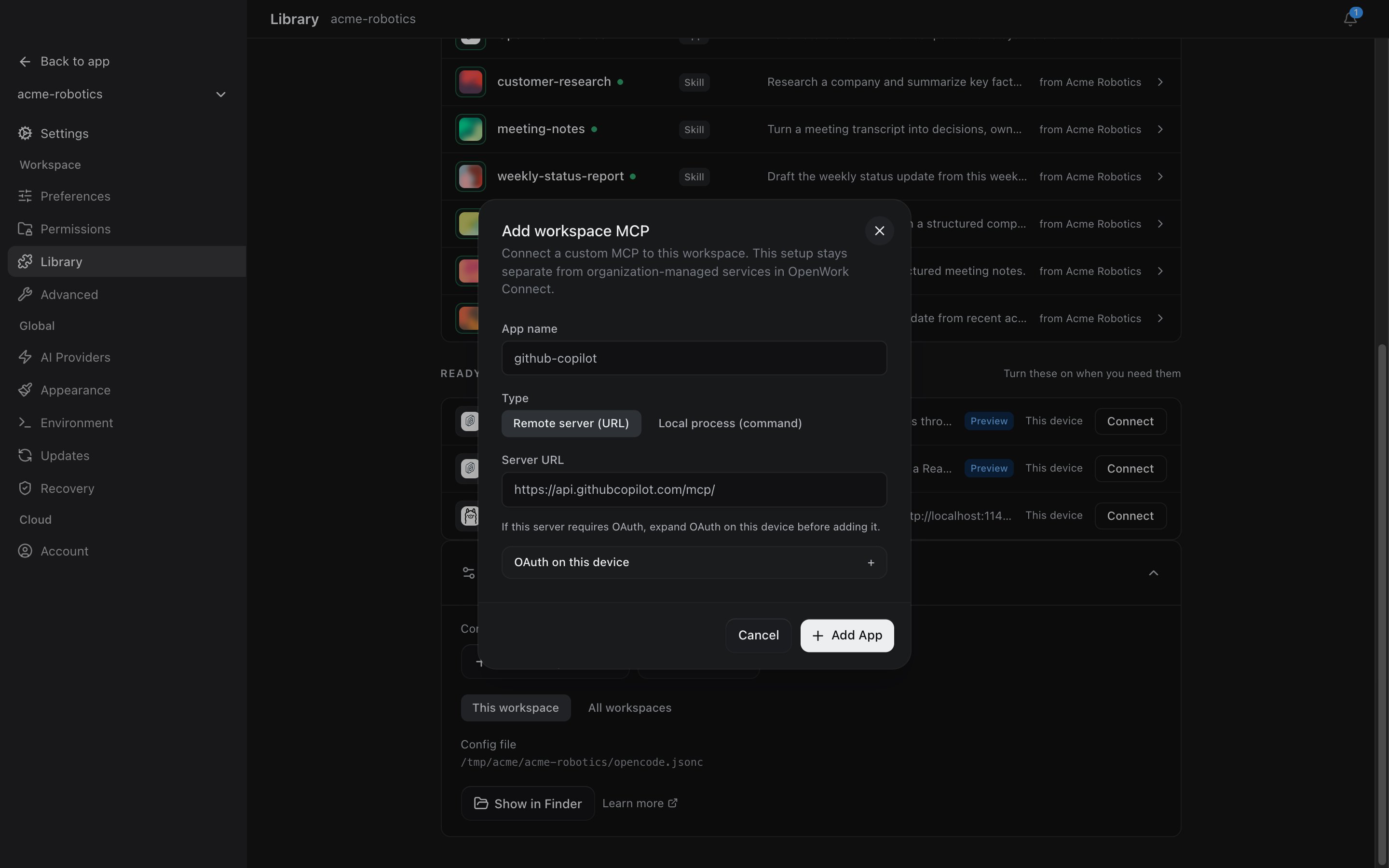
- In the desktop app, open Settings › Library, expand Advanced settings, then click Add workspace MCP.
Troubleshooting
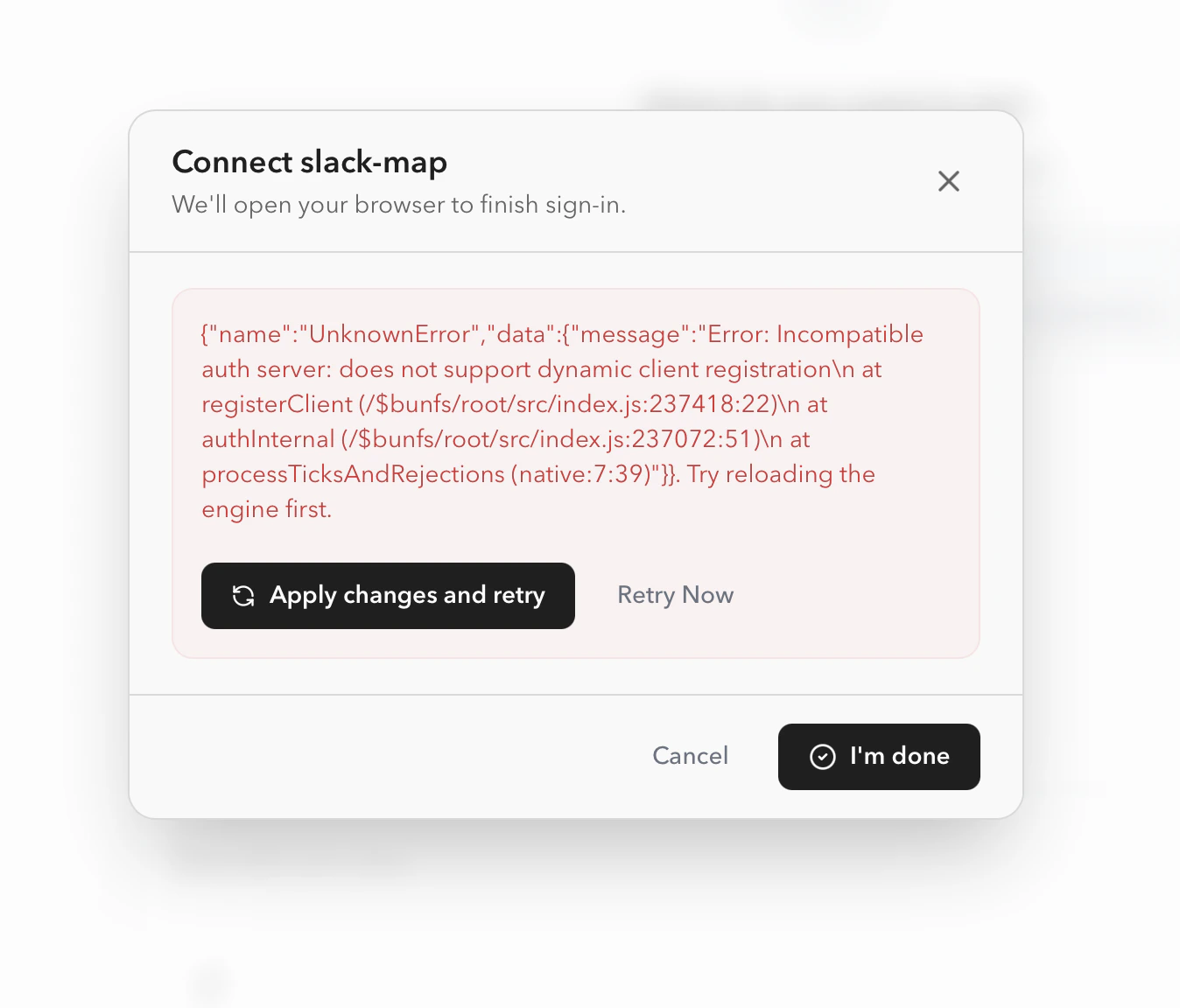
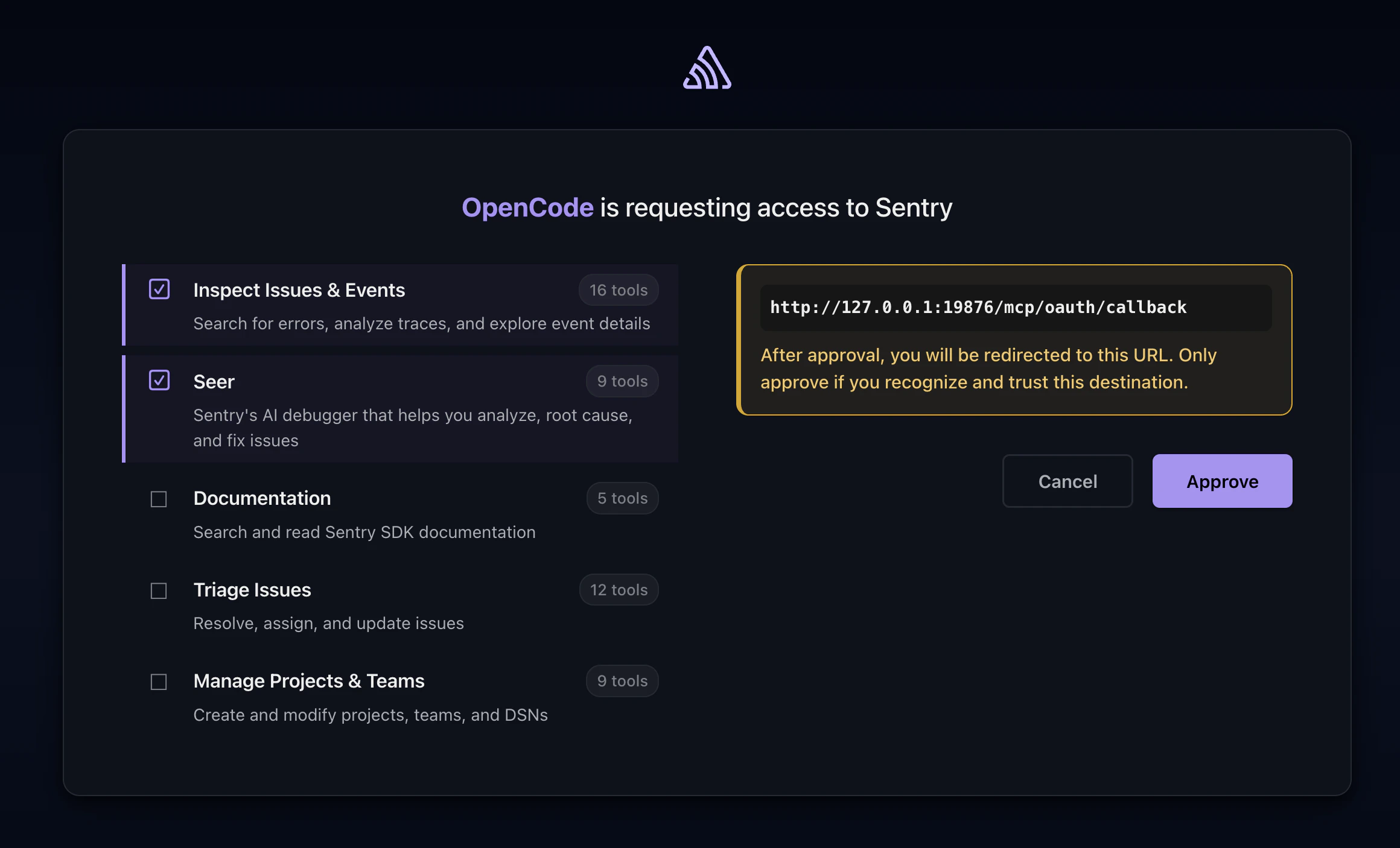
Some MCP servers do not support dynamic client registration. If the server gives you a pre-registered OAuth client ID and client secret, add it in Add workspace MCP under OAuth on this device (OAuth client ID and OAuth client secret).Workspace MCPs are local to you. To share an MCP server and its MCP Apps with the organization, add it in OpenWork Cloud under Manage › Connectors. To build your own MCP App, see Build an MCP App.