

Local provider setup. The key you add here is for your desktop app. OpenWork remains free, and you do not need to sign in to OpenWork Cloud. To manage Anthropic access for a team, use a managed LLM provider.
Before you start
- You need an account at platform.claude.com with API billing set up. API use is billed separately from a Claude Pro or Max subscription.
- Treat the key like a password. Anthropic shows the full key only once, when you create it.
Create the key in Anthropic
- Sign in at platform.claude.com.
- Open the API Keys page.
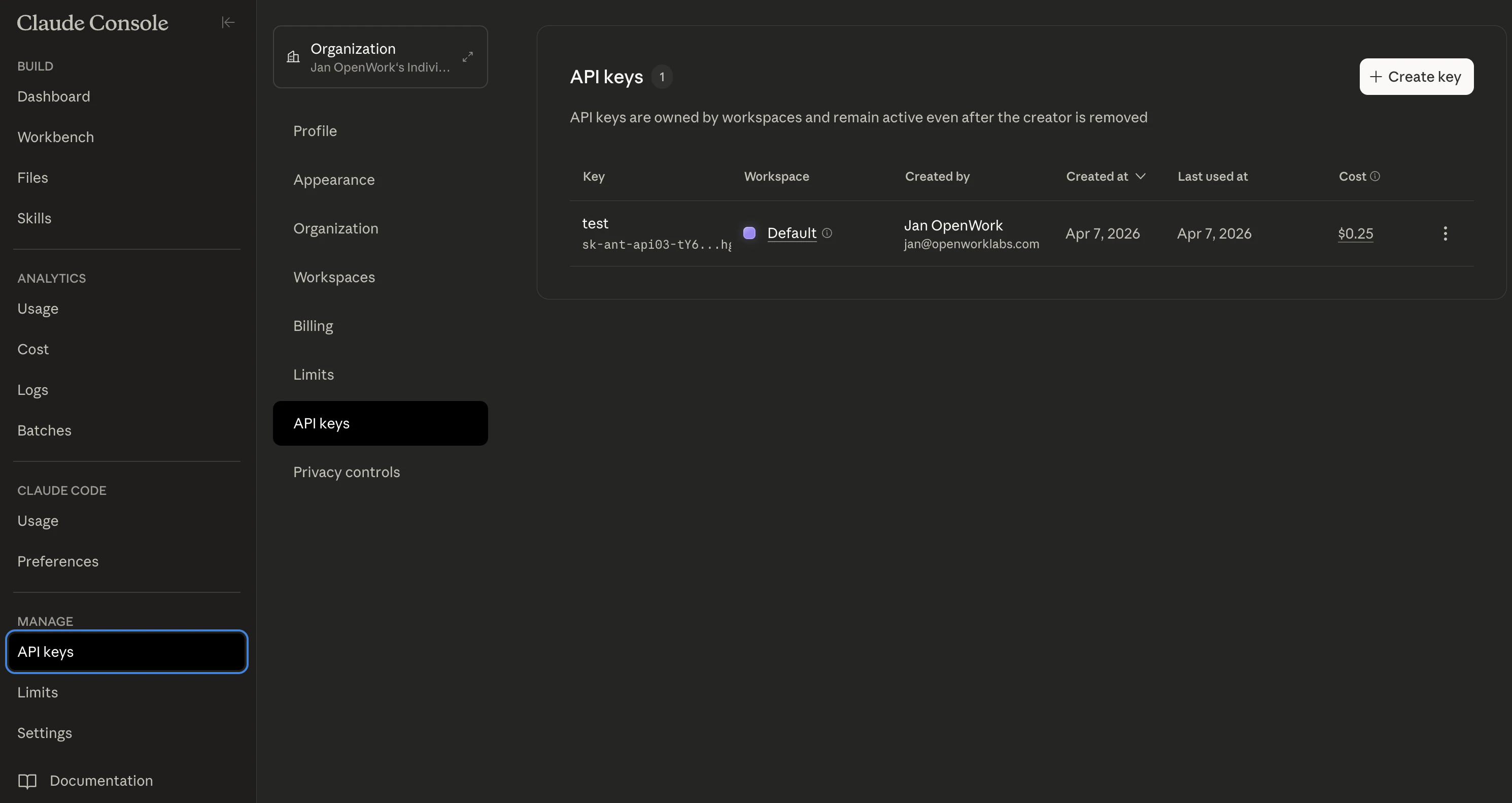
- Click Create Key.
- Give the key a name you’ll recognize, such as
OpenWork.
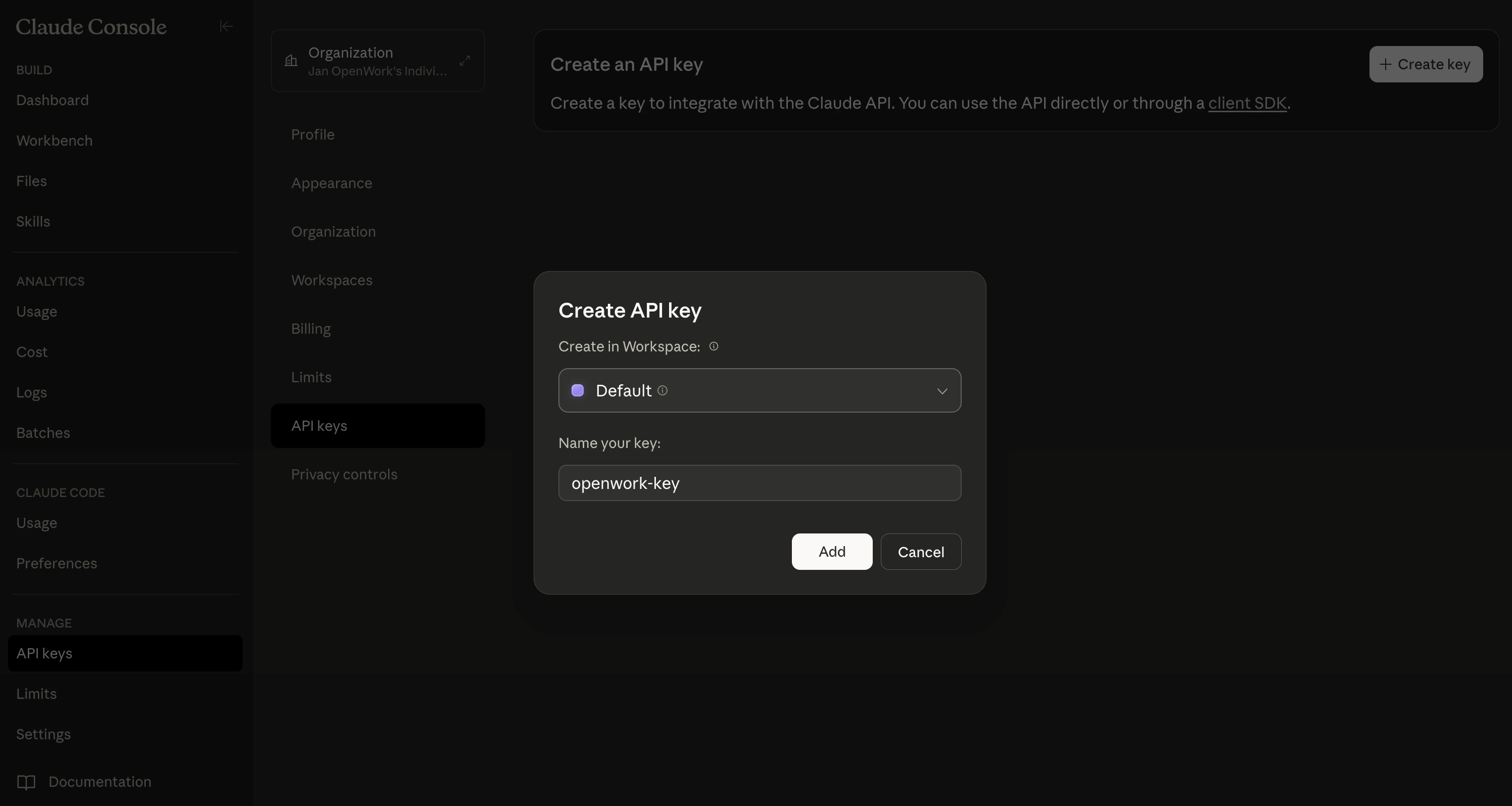
- Copy the key right away. It starts with
sk-ant-.
Add the key to OpenWork
- Open Settings › AI Providers.
- Click Connect provider.
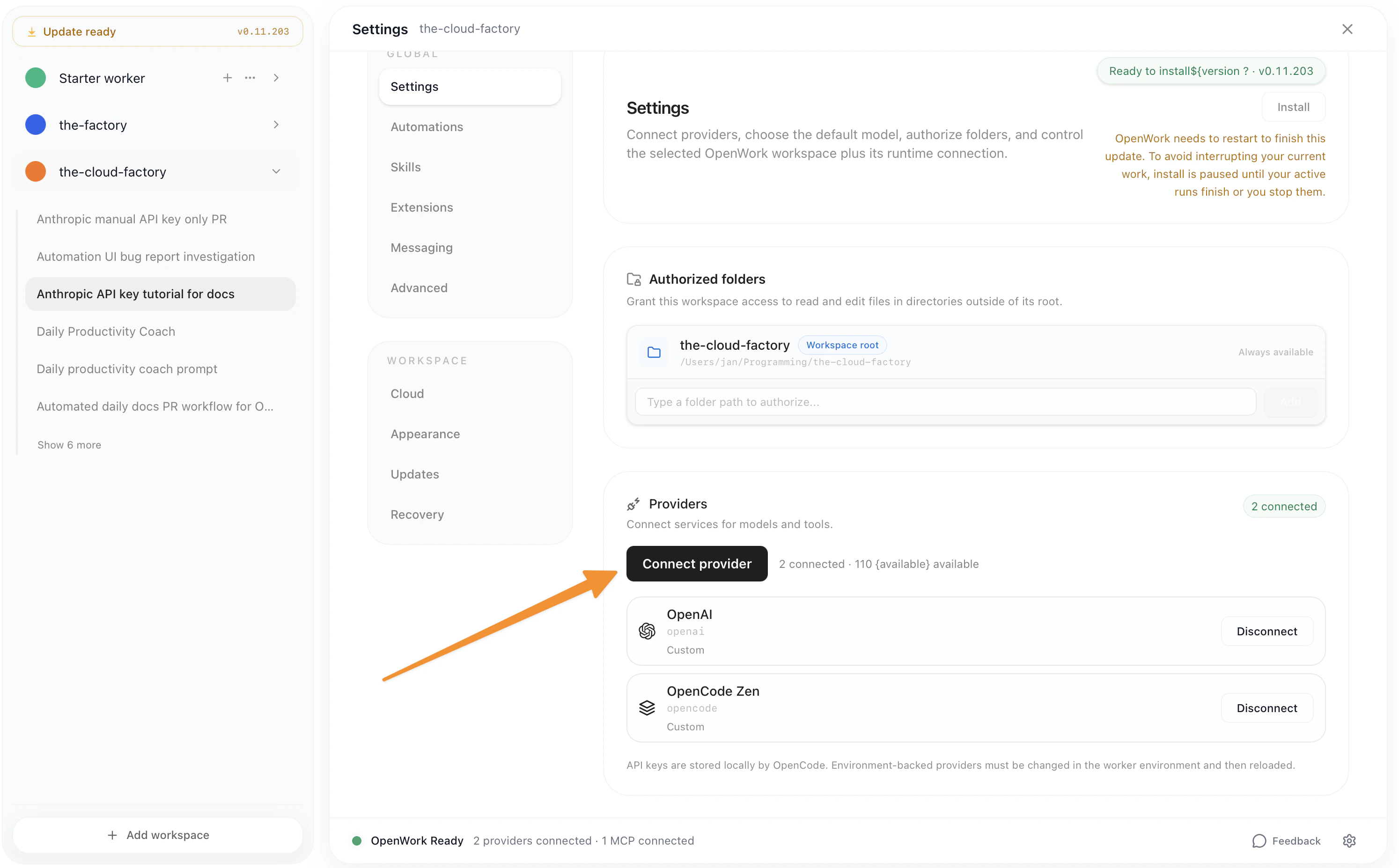
- Choose Anthropic. You see “Paste your API key to connect.”
- Paste the key into the API key field.
- Click Save key.
- In a chat, click the model name under the message box and choose a Claude model.
Common issues
- The key is rejected. Make sure you copied the whole key, with no extra spaces.
- You can’t find API Keys. Check that your Anthropic account has API access and billing set up.
- You lost the key. Create a new key in Anthropic, then repeat the steps above to replace it in OpenWork.