

Rolling out. This option is being turned on gradually. If step 3 below only offers an API key, it is not on for you yet. Use an Anthropic API key in the meantime.
What “local only” means
It works here:- The OpenWork desktop app, in a workspace on your own computer, with Claude Code installed and signed in on that same computer.
- You can be signed in to OpenWork Cloud at the same time. Claude Code stays a personal connection under On this device.
- For a team. Admins cannot add a Claude subscription in AI Gateway or share yours with anyone. Each person connects their own, on their own computer.
- In the cloud. OpenWork in the browser, Workbot and OpenWork in Slack run on servers, where your Claude Code login does not exist.
- On another computer. A workspace that runs somewhere else would need Claude Code installed and signed in there, not on yours.
Before you start
- A paid Claude plan that includes Claude Code, such as Pro or Max.
- Claude Code version 2.1.248 or later, installed on the computer where you use OpenWork. Follow Anthropic’s setup guide. To check your version, run
claude --versionin a terminal. - The latest OpenWork desktop app.
Sign in to Claude Code
Do this once, in a terminal on the same computer:Connect it in OpenWork
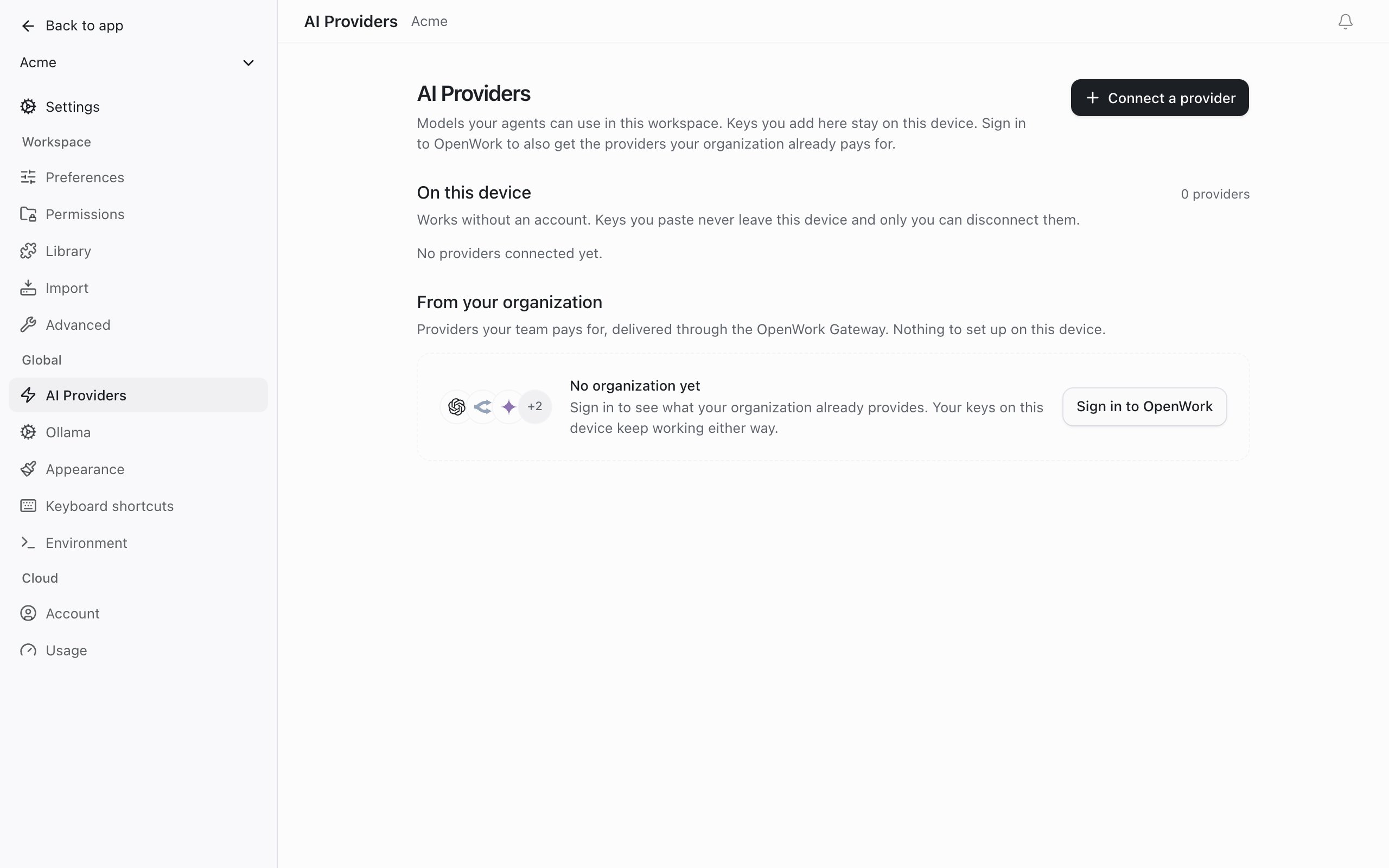
- Open Settings › AI Providers and click Connect a provider.
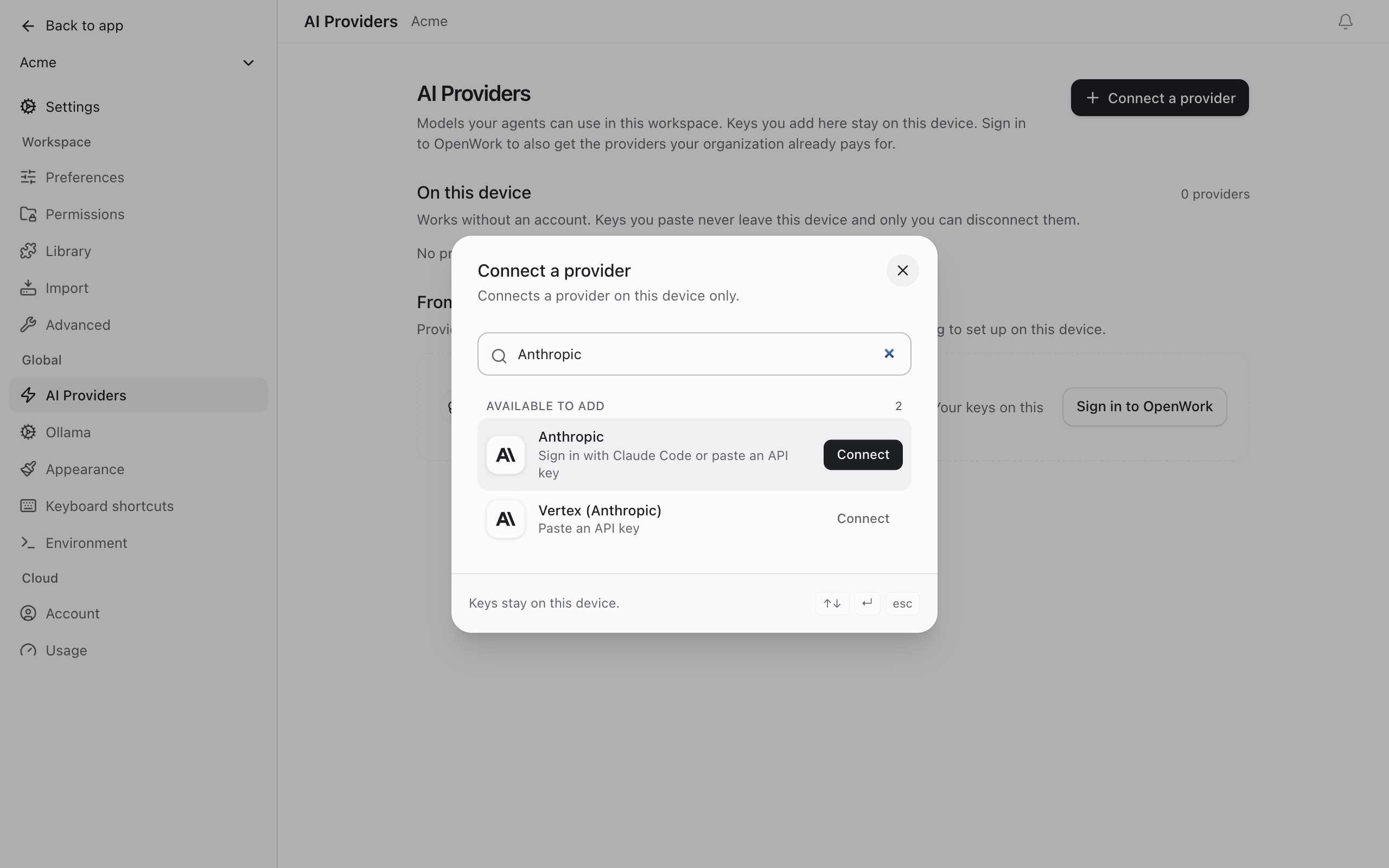
- Search for Anthropic and choose it. Its line reads “Sign in with Claude Code or paste an API key”.
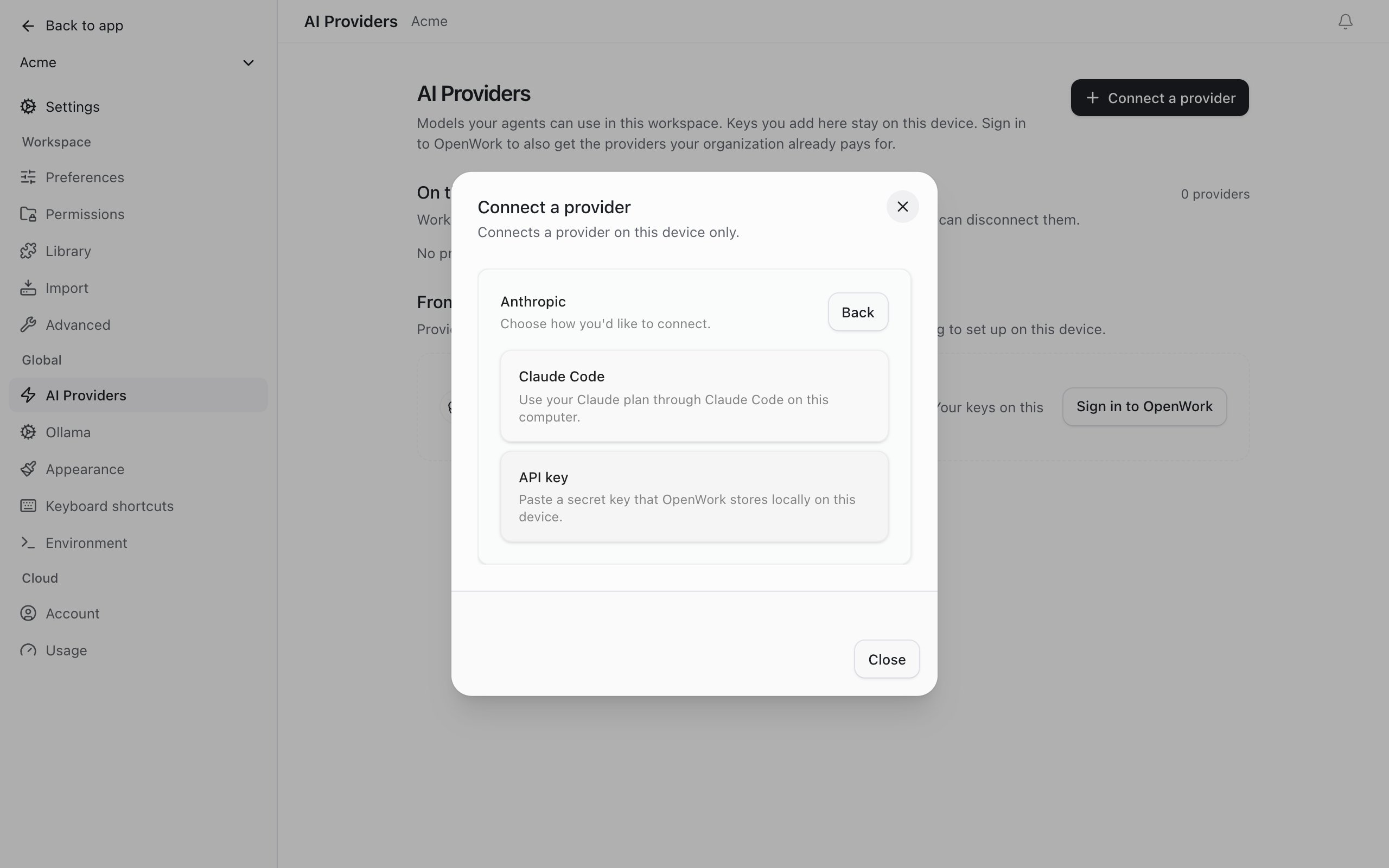
- You see “Choose how you’d like to connect.” Choose Claude Code.
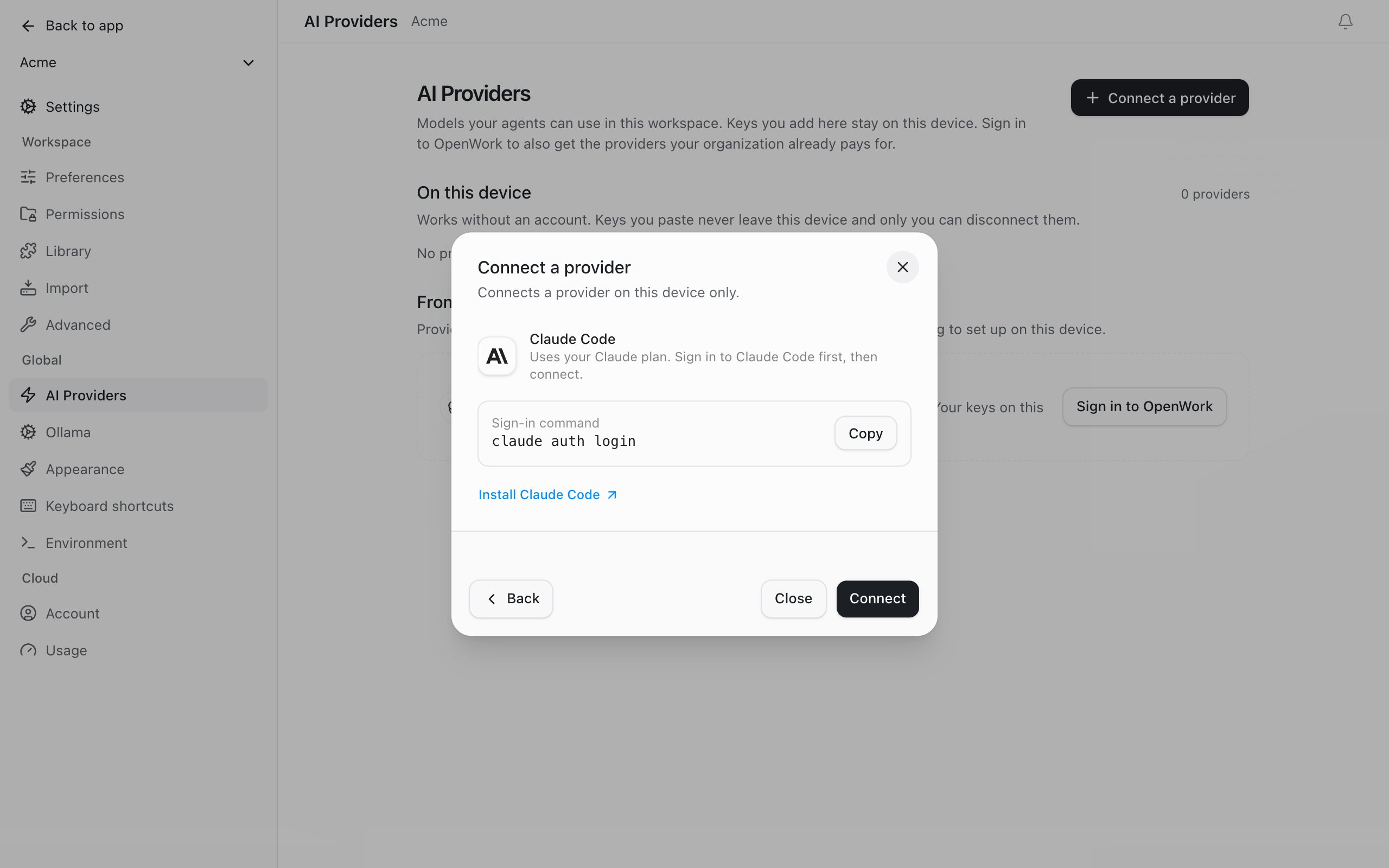
- The next step shows the sign-in command again, in case you have not run it yet. Click Connect.
- The button reads “Checking Claude Code…” while OpenWork checks that Claude Code is installed and signed in. This takes a few seconds.
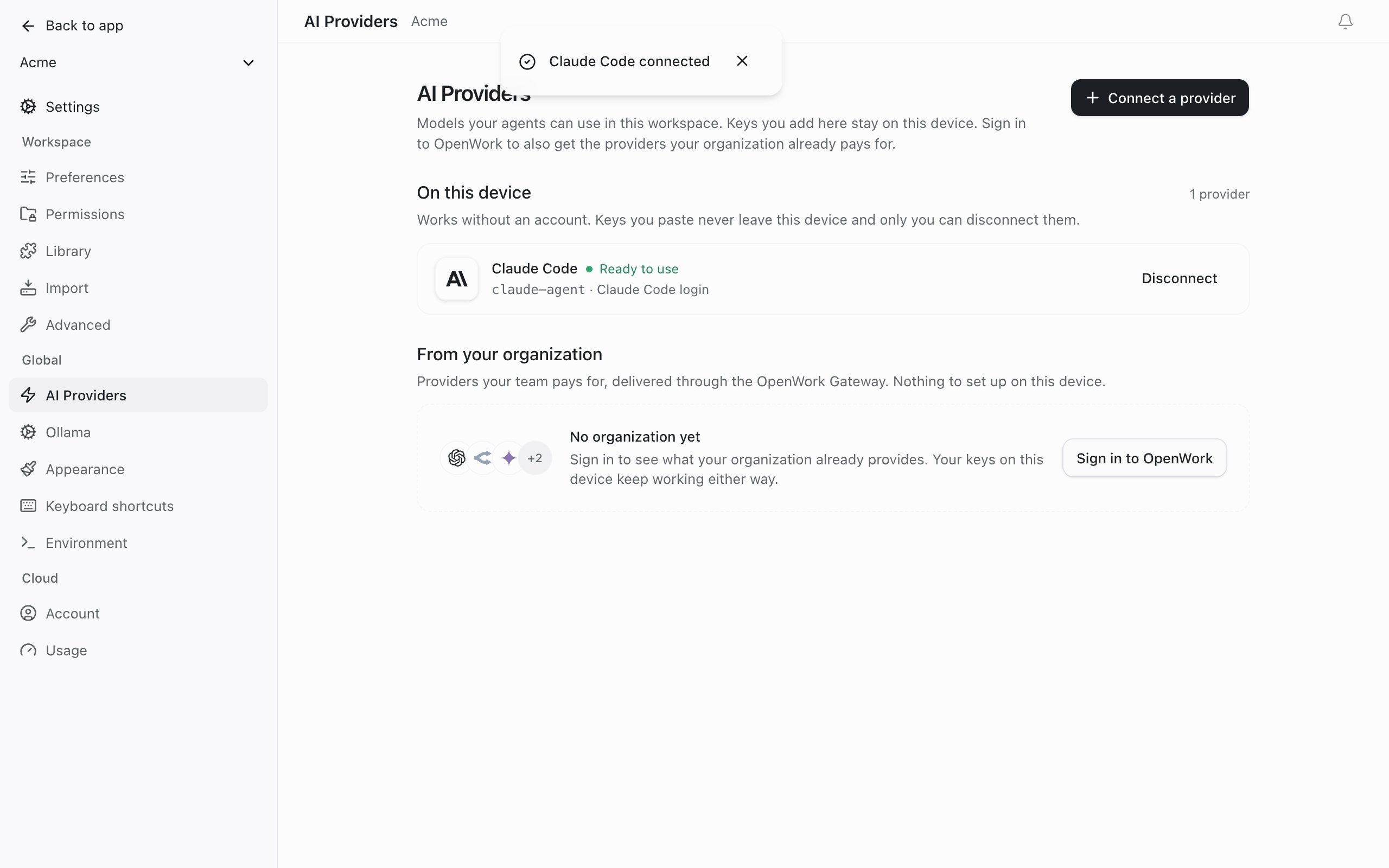
- When the check passes, the dialog closes and you see “Claude Code connected”. Claude Code is now listed under On this device as Ready to use.
Pick a Claude model
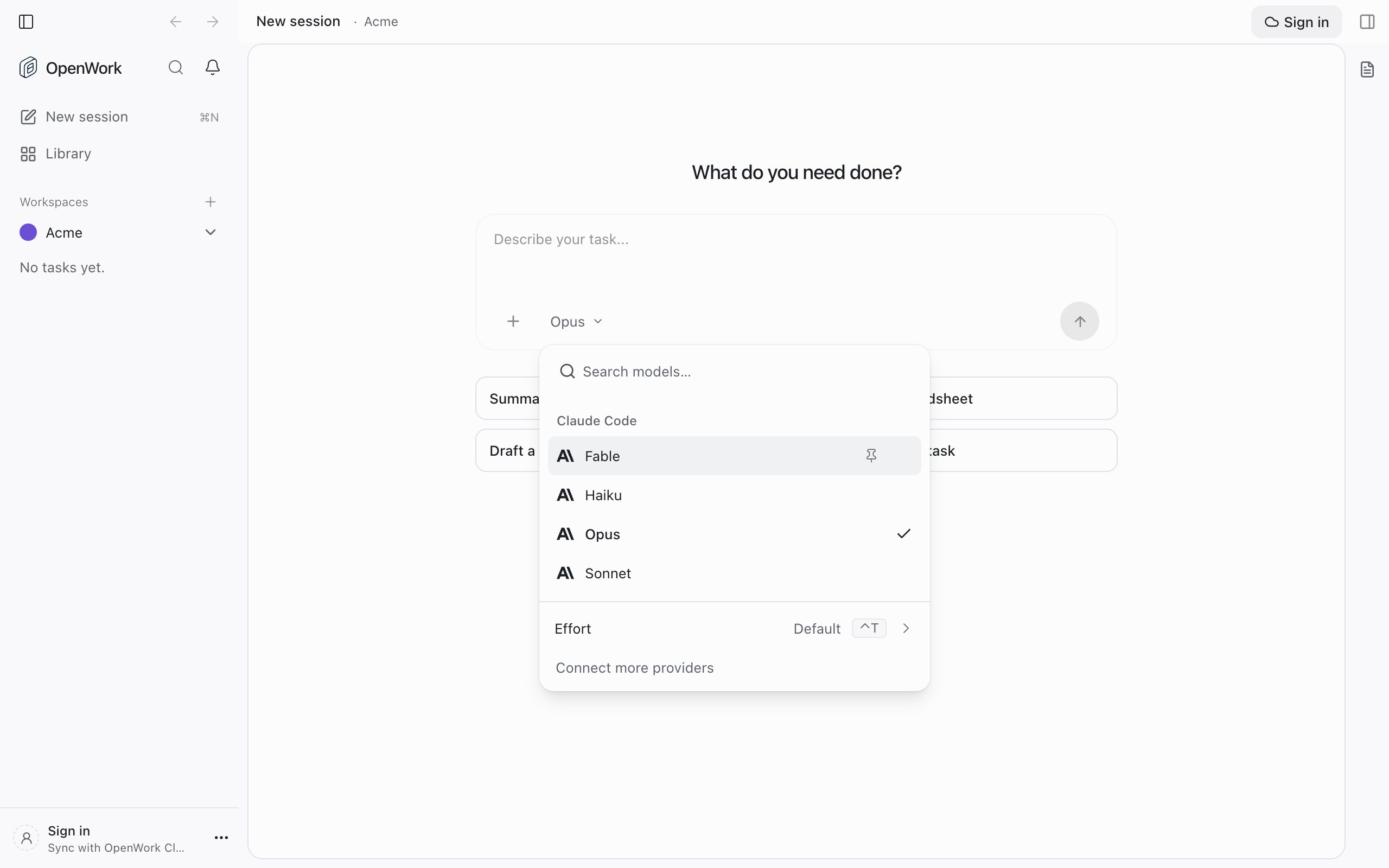
- In a chat, click the model name under the message box.
- Choose a model under Claude Code. The list comes from Claude Code and depends on your plan.
If the check does not pass
The dialog stays open and says why. Fix it, then click Check again.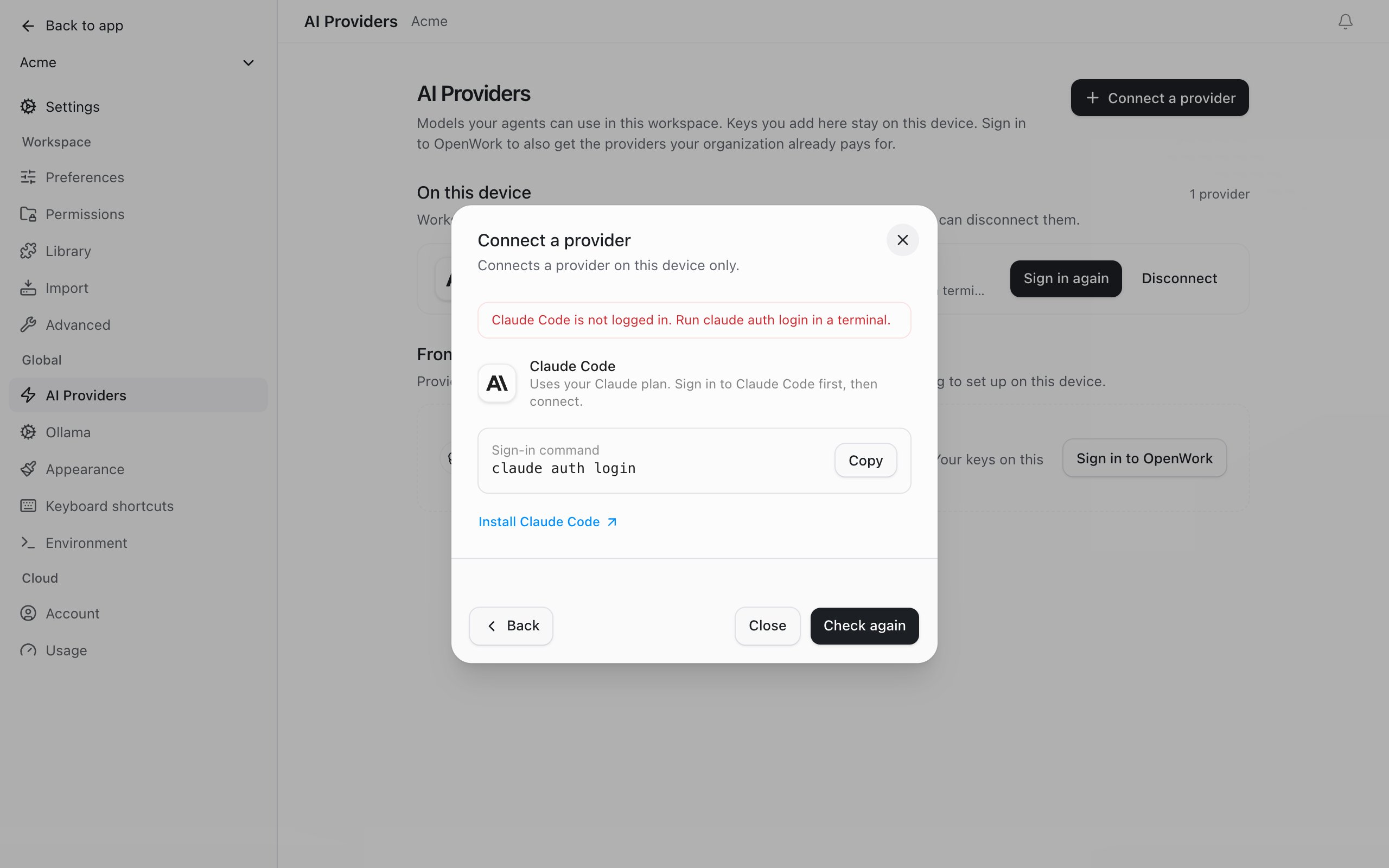
- “Claude Code is not logged in.” Run
claude auth loginin a terminal, finish the sign-in in your browser, then click Check again. - “Claude Code is not installed.” Click Install Claude Code, follow Anthropic’s guide, run
claude auth login, then click Check again. - “Couldn’t confirm that Claude Code is ready.” Claude Code did not answer in time. Make sure it opens in a terminal on this computer, then click Check again.
What the status means later
The Claude Code row under Settings › AI Providers › On this device shows one of these:- Ready to use. OpenWork checked Claude Code and it is signed in.
- Not checked yet. OpenWork has restarted and has not checked Claude Code again. You can keep using it. If something is wrong, the row changes to Needs your sign-in.
- Needs your sign-in. Claude Code got signed out or stopped working. Run
claude auth loginin a terminal, then click Sign in again and Check again.
Disconnect
Click Disconnect on the Claude Code row. This removes the connection from OpenWork only. Claude Code itself stays installed and signed in on your computer.Common issues
- Anthropic only offers an API key. The option is not turned on for you yet, or your OpenWork is out of date. Update the desktop app, or use an Anthropic API key.
- Connect a provider is locked. Your organization only allows the models it provides. Your own Claude plan cannot be used in OpenWork there.
- A chat says Claude Code is too old. Run
claude updatein a terminal, then send the message again. - A teammate cannot see your Claude models. That is expected. This connection is yours alone and stays on your computer.
- You want Claude for your whole team. Use an API key through AI Gateway: Adding a managed LLM provider.